Zoom Conference Room
Zoom Rooms are Zoom-enabled meeting spaces in many conference and seminar rooms on campus. The digital display(s) are connected to a Zoom Room tablet that allows you to start or join meetings and share content, featuring many of the familiar controls found in the Zoom desktop application. When a Zoom Room joins a meeting, it appears in the Participant panel with the name of the space where it is located.
Using Zoom Rooms on Campus
When planning to use a Zoom Room-equipped space, the following is recommended:
- Schedule your meeting in advance using your usual method via your UMassD account – Outlook calendar integration, Canvas integration, UMassD Zoom website, etc.
- Bring a laptop with you to share content, breakout rooms, and manage participants. Use the Zoom Room tablet/control panel to Join the already scheduled Zoom meeting.
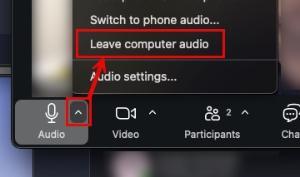
- Use the room’s built-in equipment and remind in-room participants that they should not connect to audio on their own devices to avoid in-room audio feedback. If on the in-room Zoom meeting using another device, select the Audio options and select Leave computer audio.
- If others are helping you run the meeting, list their UMassD email as Alternative Hosts on the scheduling form. (Note: use their non-alias UMassD email address.) This way, if they join from a laptop or other device, they will be given the Host/Co-host role as necessary.
Zoom Room Home Screen
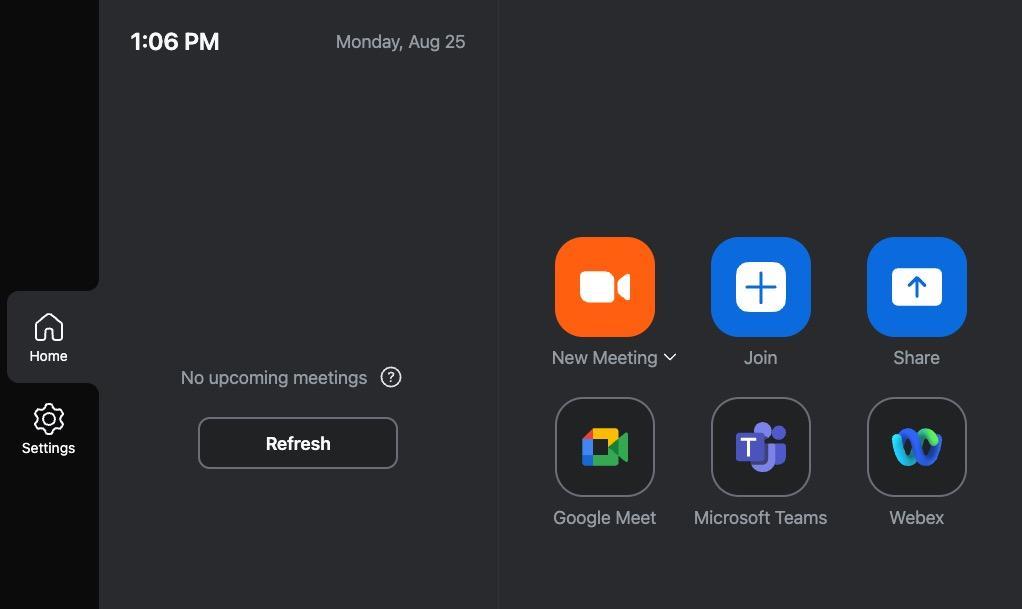
The Zoom Room tablet or control panel provides a home screen with options to start/join meetings and present content without a meeting. Zoom is the primary teleconference option, but most UMassD Zoom Rooms include Google Meet, Microsoft Teams, and Webex meeting options.
Zoom Support
- View more information about Host Controls in a Zoom meeting.
- Additional Zoom Meetings Support.
New Meeting
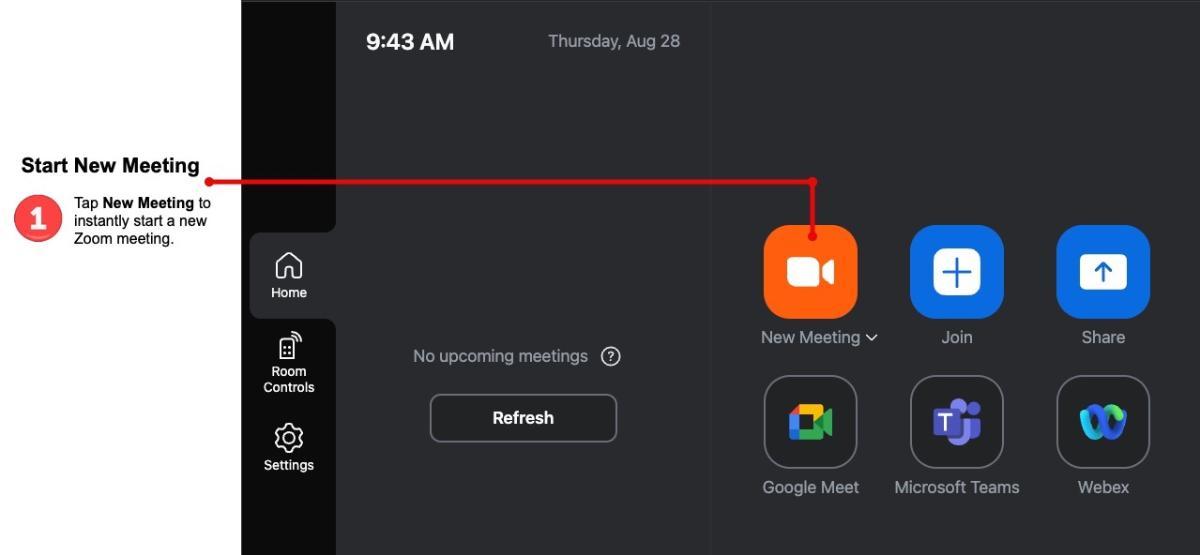
Start a new Zoom meeting instantly by tapping the New Meeting button on the Zoom Room tablet/control panel.
To record a Zoom meeting, please use the Join feature in a Zoom Room instead of creating a new meeting. Recordings will be saved to your UMassD account and can be accessed via Zoom cloud recordings on the UMass Zoom website.
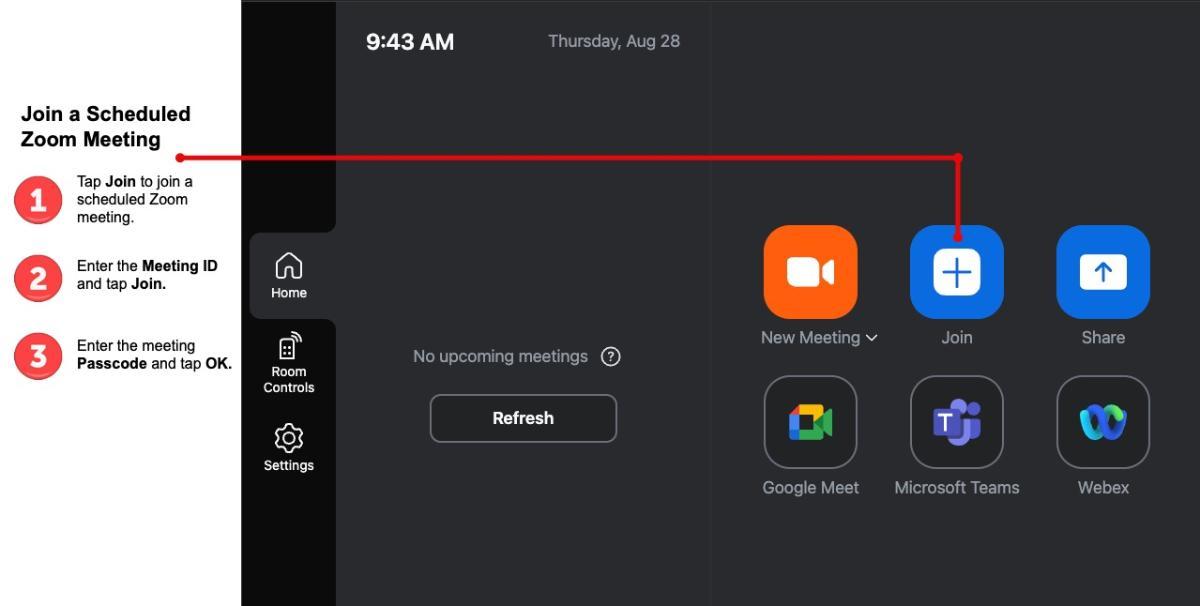
Join an Existing Zoom Meeting
Whenever possible, always use the Zoom Room to join an existing Zoom meeting. This ensures that host functionality, like recording, is connected to a UMassD account versus the Zoom Room's account.
- On the Zoom Room tablet, tap the Join button on the controller to join a Zoom meeting
- Enter the meeting ID, then press Join
- Enter the meeting passcode and tap OK.
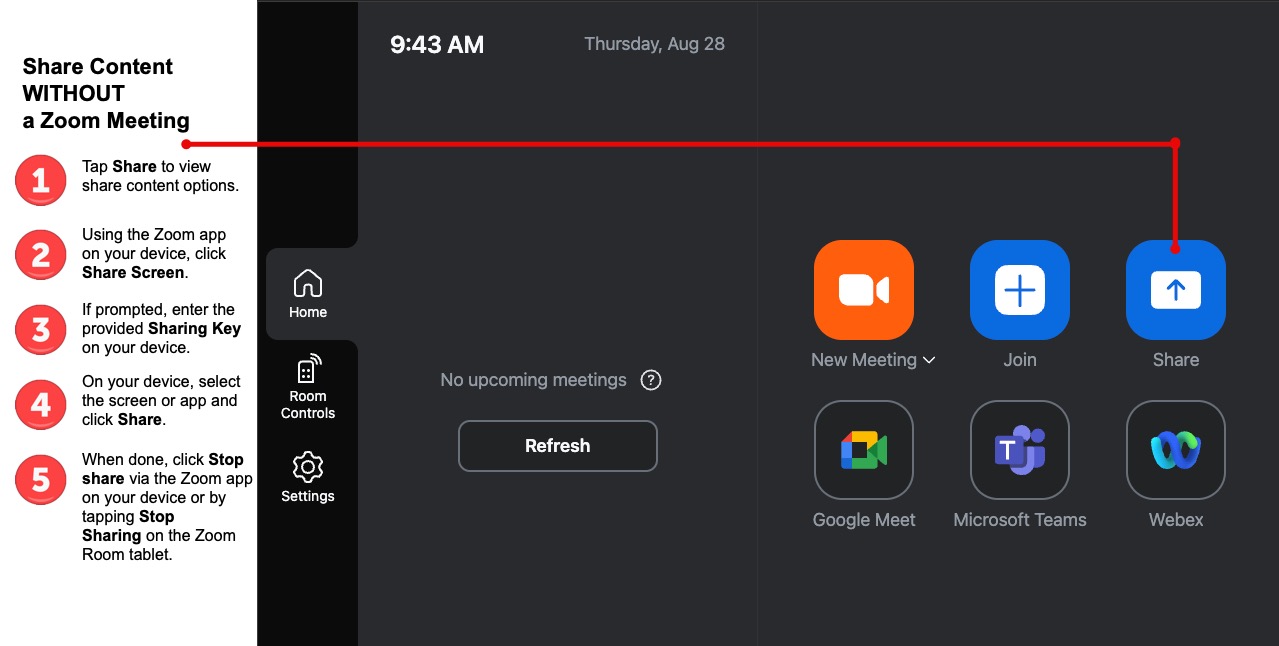
Share Content from your device WITHOUT joining a Zoom meeting:
- Make sure your device is connected to the Eduroam wireless network.
- Tap Share on the Zoom Room tablet/control panel
- Open the Zoom app on your laptop or other device, and select Share Screen.
- If prompted, enter the Sharing Key to connect your computer to the Zoom room
- Select the screen or application and click Share.
- When finished, stop sharing the screen by clicking Stop share via the Zoom app on your device or by tapping Stop Sharing on the Zoom Room tablet.
Zoom Meeting Controls
Once the Zoom Room has joined the meeting, the tablet’s screen will display typical Zoom meeting controls. Options may vary depending on the space and the Zoom Room’s role within the meeting (Host vs. Participant).
Use the Zoom meeting controls to manage audio, video, participant video displays, and more.
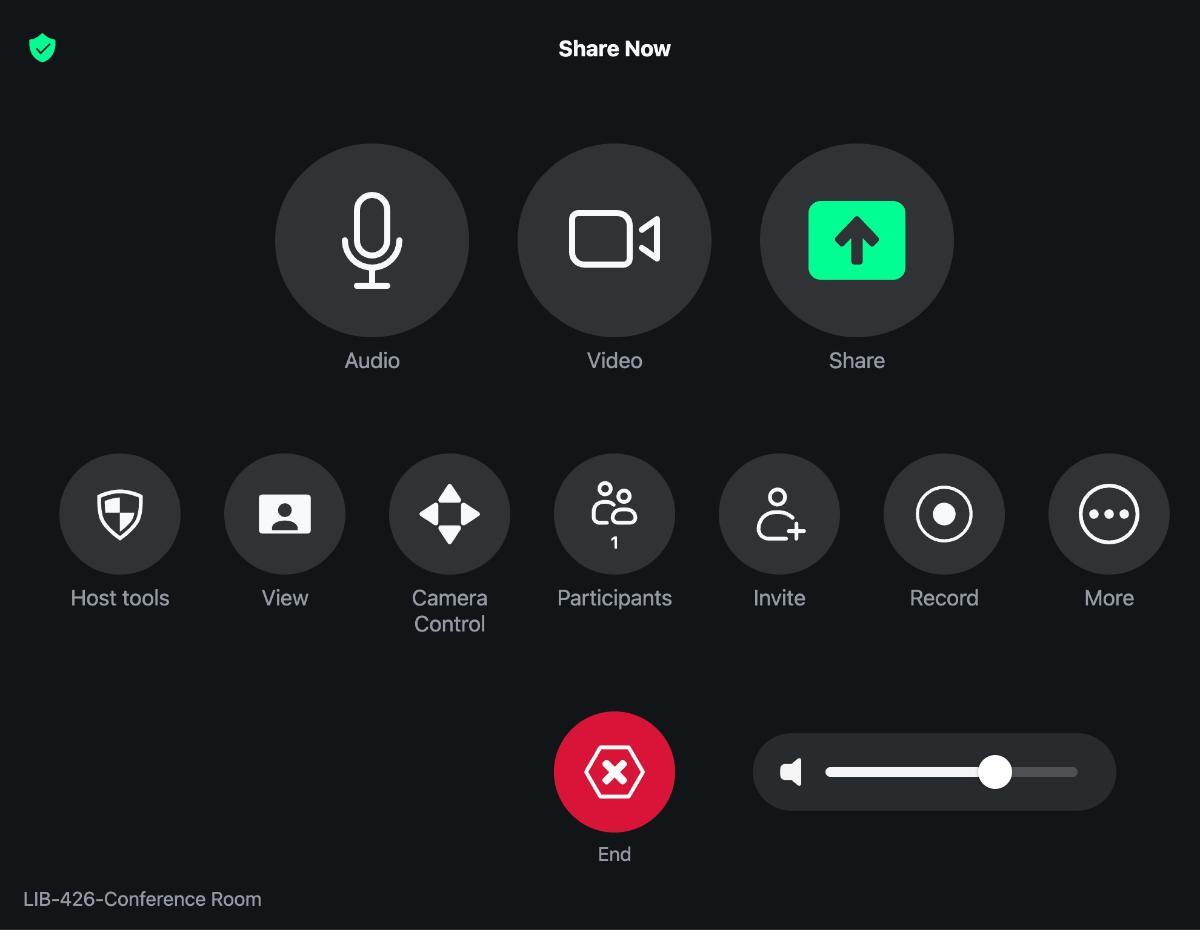
More Zoom Meeting Controls
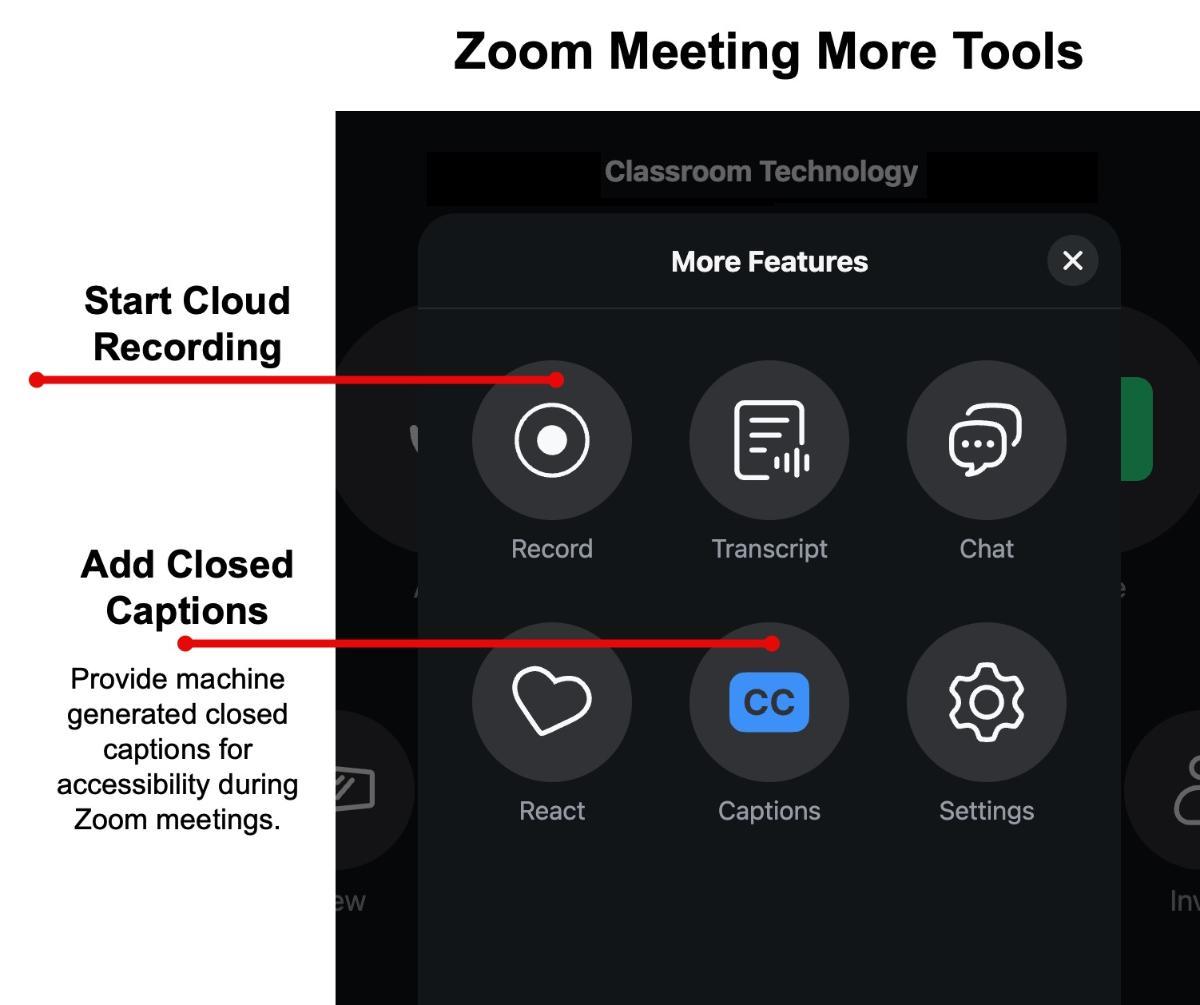
The More section of Zoom meeting controls includes additional tools like:
- Closed Captions - adding machine-generated closed captions for accessibility
- Recording - start a cloud recording