Work Order Requests Instructions
Please use Instructions below to submit a Work Order Request
- AE Account URL: https://assetessentials.dudesolutions.com/UMassD
- On the Mobile app, enter Client ID: UMassD
SUBMITTING A WORK ORDER REQUEST
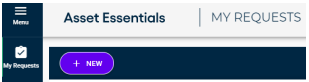
Once you’ve logged into Asset Essentials, your page will open directly to the “My Requests”
tab. Here, you can create new requests or view previous submittals along with the status of
those submittals. To create a new request, make sure you are on the ‘My Requests’ tab and
click on ‘New.’
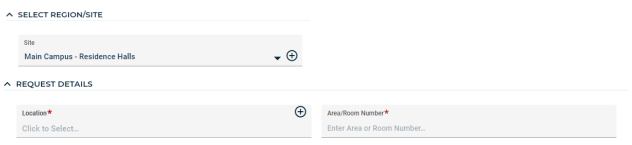
SELECT SITE/LOCATION/ENTER ROOM NUMBER: Click to select the specific Site and Location
for your request. Using the text box, identify the specific Area/Room Number for the request.
DEFINE YOUR REQUEST: Click on the dropdown menu and select the appropriate Work
Category that best fits the nature of your request. In the Work Requested, define your
request and include any relevant information that will aid the maintenance team. Be as
descriptive as possible.

UPLOAD DOCUMENT/IMAGE: If there are any pictures or documents associated with the
request, you can add them in the Documents/Image section of the request page. These can
be added by clicking on the “Add Attachment” button or dragging and dropping the file in the
box.
Once all the information has been entered, click SUBMIT to save and enter your request.
VIEWING YOUR REQUESTS: After submitting a work request, you will automatically be taken
to your My Request summary page. This will allow you to see a summary list of all requests
that you have submitted and the status of those.
ADDITIONAL RESOURCES:
• See Video Here → How to put in a request
• Requester Help Page
• Mobile App Requests