Classroom IT Help
Classroom Help Request System
The Classroom Help Request System provides a fast, streamlined way to request classroom technology support directly from the Crestron touch panel in IT-supported labs and classrooms. This new solution allows instructors, staff, and presenters to report issues quickly without disrupting instruction.
How to Request Classroom Technology Help
- Tap “Request IT Assistance” on the Touch Panel at the teacher station/podium or on a nearby wall-mounted panel.
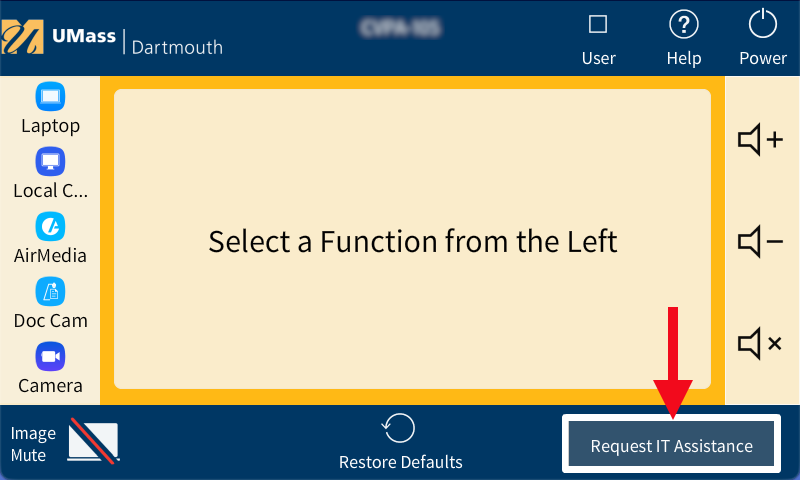
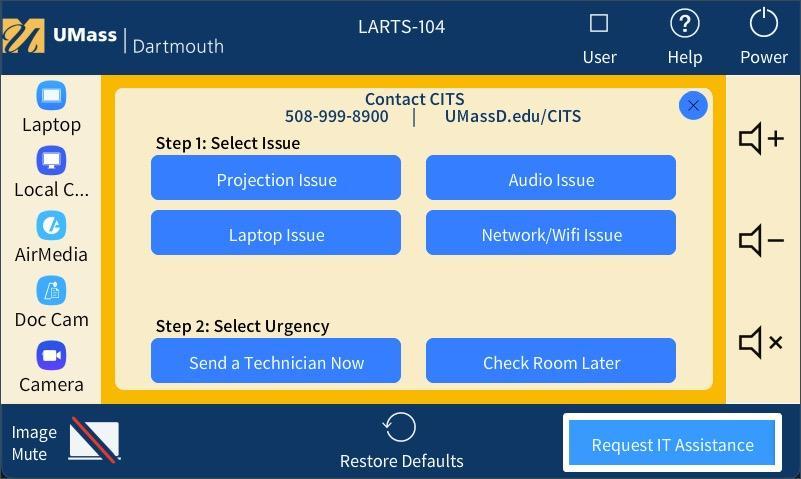
- On the touch panel, tap one of the issues listed:
- Projection Issue
- Audio Issue
- Laptop Issue
- Network/Wi-Fi Issue
- Select the urgency of the request: choose when to request help in the classroom:
- Send Technician Now: select this option if your class or event is currently in session and you need immediate assistance.
- A technician will be dispatched as soon as possible during business hours.
- The touch panel will display a confirmation and Salesforce case number.
- When a technician is en route, the panel will update to “IT Technician Dispatched.”
- Send Later: choose this option if the issue does not require immediate assistance.
- A help ticket is created and added to a low-priority queue.
- The IT Service Center will schedule a technician when the room is available during business hours.
- Send Technician Now: select this option if your class or event is currently in session and you need immediate assistance.
- Receive On-Screen & Email Confirmation
- All requests generate a Salesforce case.
- The touch panel displays confirmation, including the case number.
- If the system identifies the instructor via the room schedule, the requester will also receive an email confirmation.
- The touch panel retains the case information temporarily before it times out and resets.
Why This Matters
This new process enhances classroom continuity by:
- Reducing disruptions during instruction
- Providing faster, more accurate support
- Ensuring issues are logged consistently in our help system
- Offering a simple, reliable way to request immediate assistance
Alternative Support Options
Physical classroom phones will be removed over the summer break; however, users may continue to contact the IT Service Center by:
- Calling the IT Service Center – 508-999-8900 using Microsoft Teams Voice or on a mobile device
- Submit an IT Help Case by visiting ithelp.umassd.edu
Frequently Asked Questions
A technician will be dispatched as soon as possible during business hours. After hours, response time may vary.
The touch panel temporarily stores the case information to prevent duplicate submissions. Once it times out, another request may be created if needed.
Yes. You may contact the IT Service Center using Microsoft Teams Voice or your mobile device.
This system replaces the in-room phone but supplements—rather than replaces—other support methods.
Yes. Anyone teaching or assisting in the classroom may submit a help request.