6. How to certify your effort with ECRT
Effort reporting
How do I know when to certify?
- UMass Dartmouth certifies effort on an Annual basis.
- the Certification will cover the previous Fall, Spring and Summer sessions.
- You will be notified via a system generated email when it is time to certify.
How do I certify my effort?
- Log onto UMASSD.EDU
- Go to MYUMASSD
- Under “Quick Launch” pick ECC System.
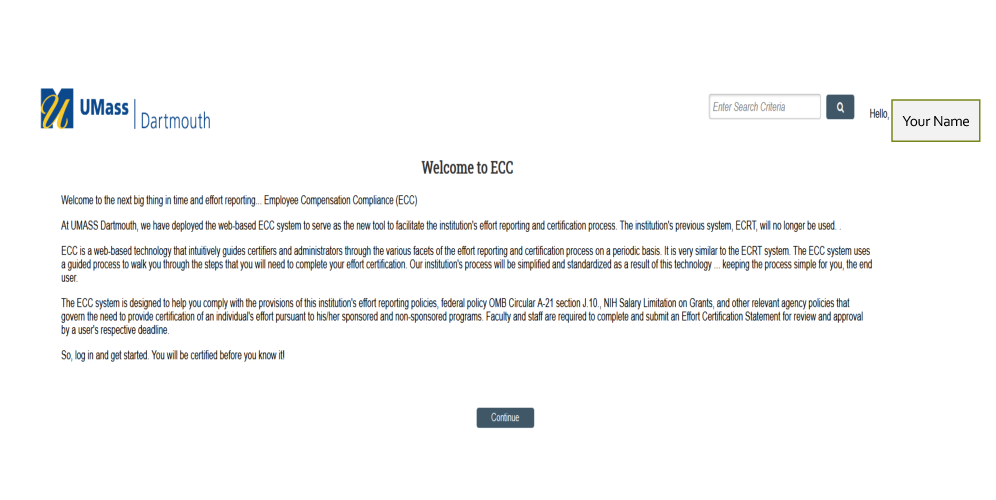
- This will bring you to the Welcome screen
- Hit the Continue button
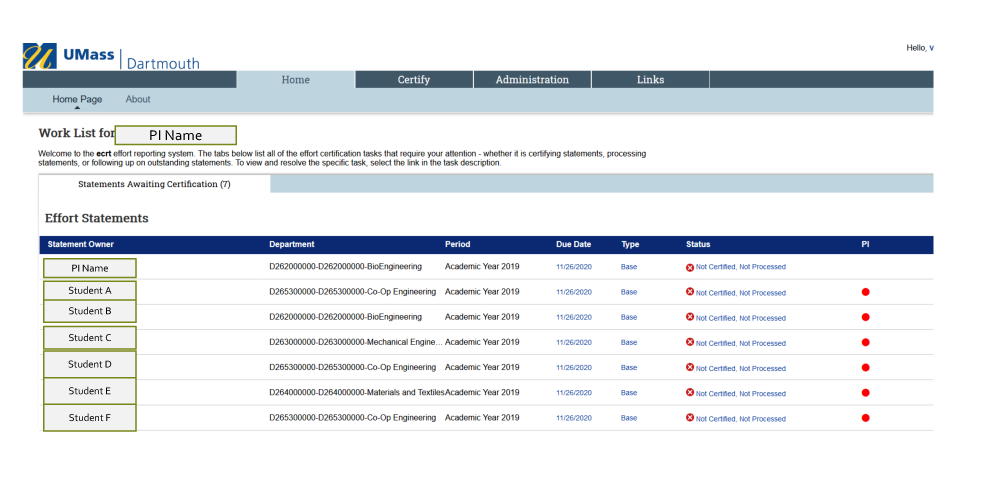
- You will be brought to your work list. Click on your name
-
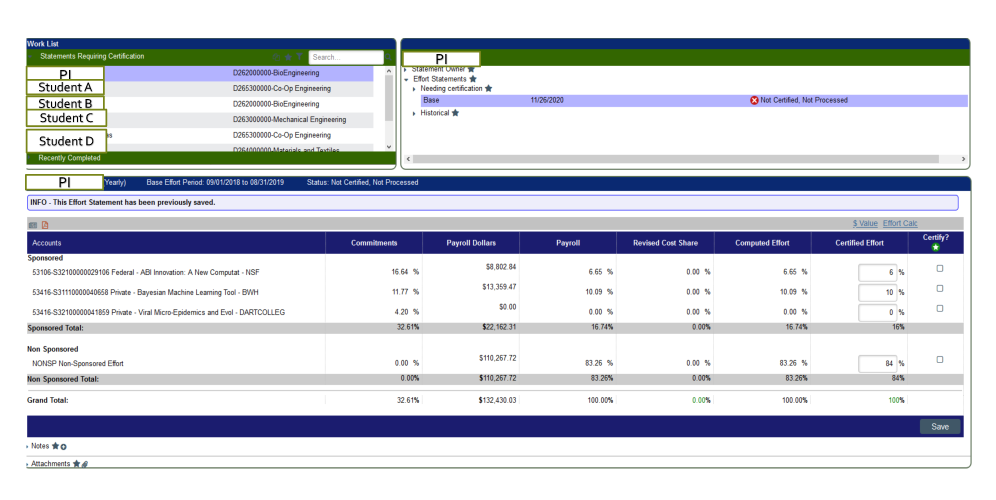
- Here is an example of an effort card. It is broken out in two different segments. The top is Sponsored Effort and the bottom is Non-sponsored Effort.
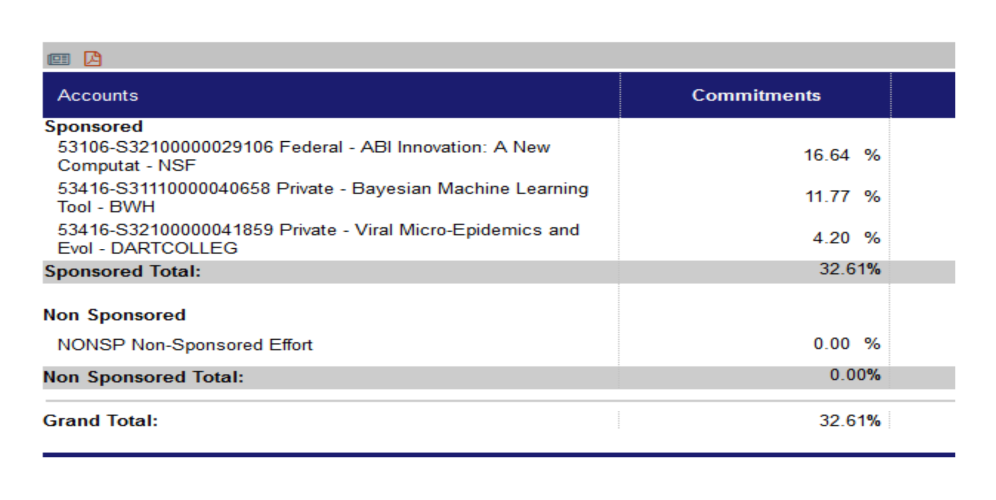
Commitments column
The Commitments column details the percentage of effort you committed to each project for the certification period. It is imported directly from PeopleSoft, which is based upon percentages allocated to each award.
If there is a difference greater than 5% between committed effort and certified effort, an explanation
must be added in the Notes section.
 Payroll and cost share columns
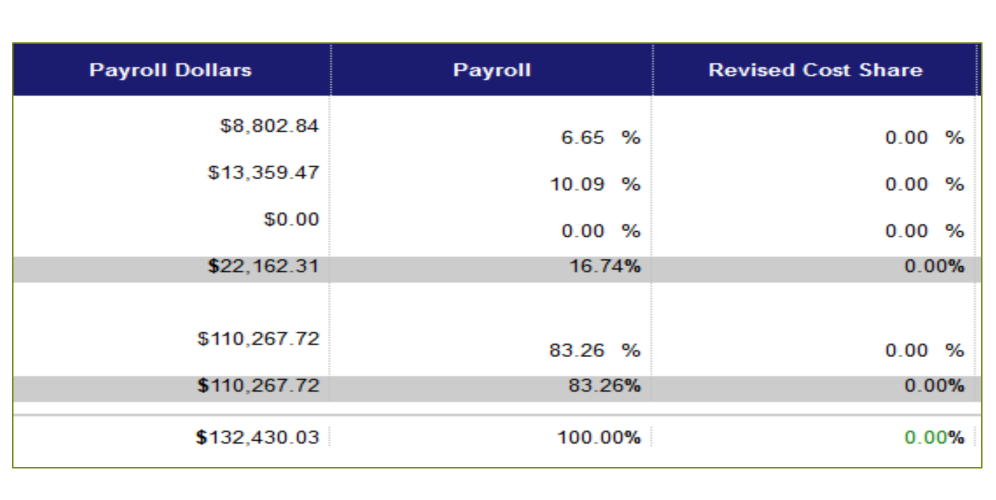
The Payroll Dollars column lists the payroll dollars charged to each project during the certification period.
The Payroll column details the percentage of effort calculated based upon the payroll dollar amount expended for the certification period. These details are imported directly to ECC from PeopleSoft.
The Revised Cost Share is used by the Effort Coordinator to Include Cost Share. All Cost Share effort is detailed in the Non-Sponsored section and entered by ORA per the award cost share commitment.
 Computed effort and certified effort columns
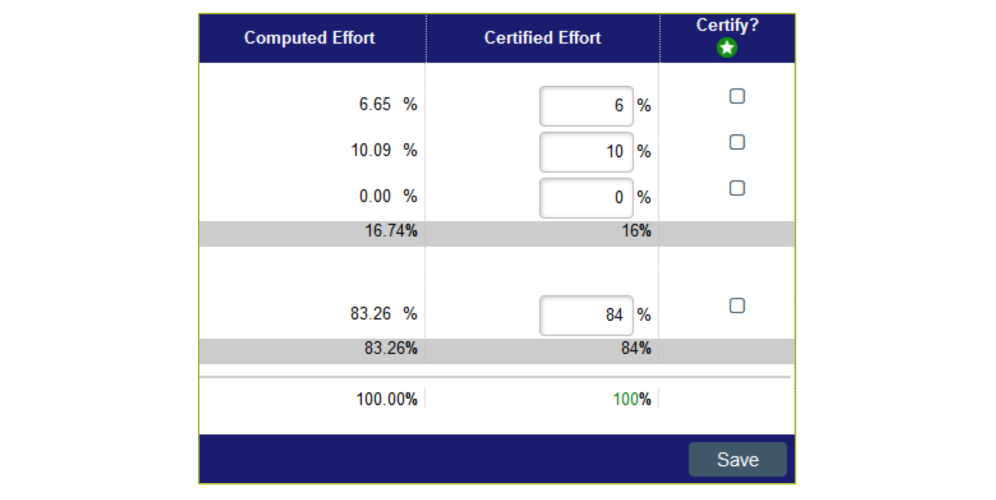
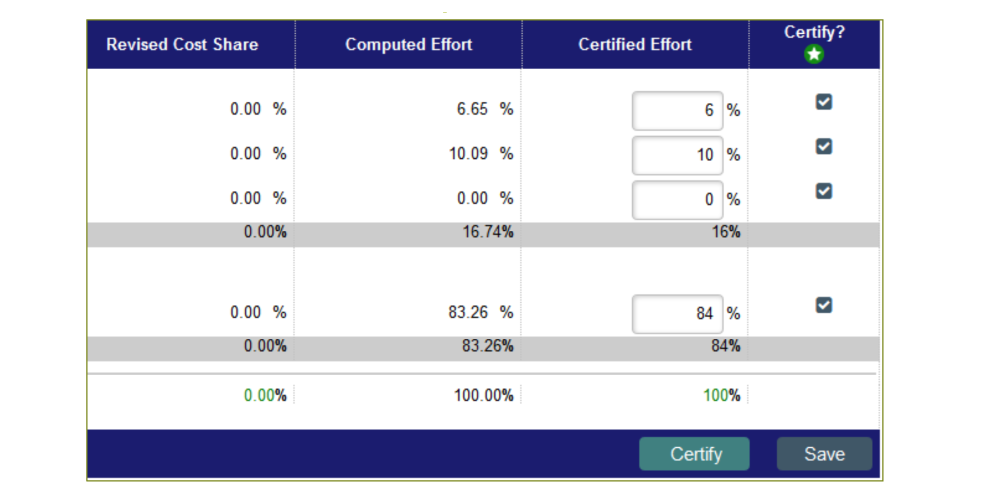
Computed effort is what the system has calculated based upon your payroll data. You are able to adjust in the Certified Effort column if your effort was different for the certification period. If the variance between the Computed column and Certified Column is greater than 5%, a note must be added to the card
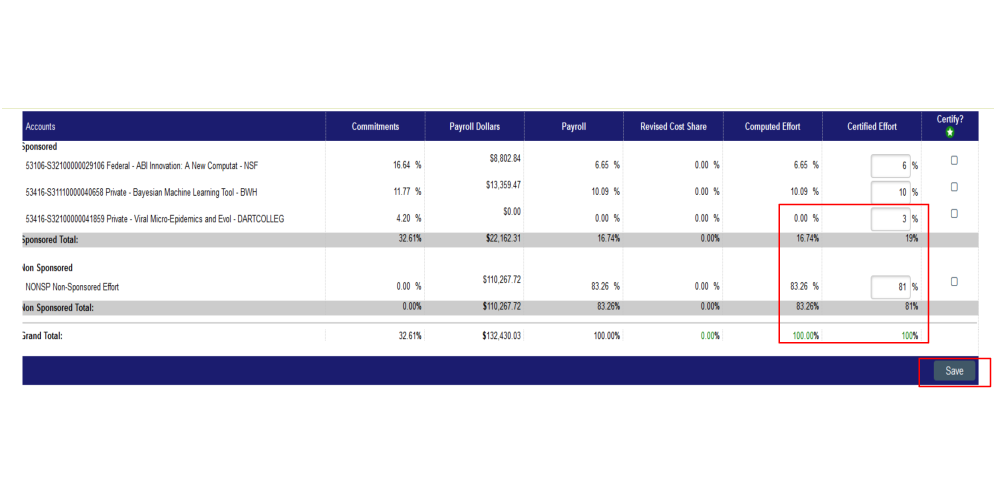
 In this case , the Certifier moved 3% of effort from the Non Sponsored line to the last project on the Sponsored section. Since the total must equal 100%, certified effort for Non Sponsored must be reduced by 3% to now equal 81%. The PI should add a note in the notes section to account for the change in effort. (Notes are required for changes in excess of 5%).
After any changes be sure to click the Save on the bottom right.
Adding a note or attachment
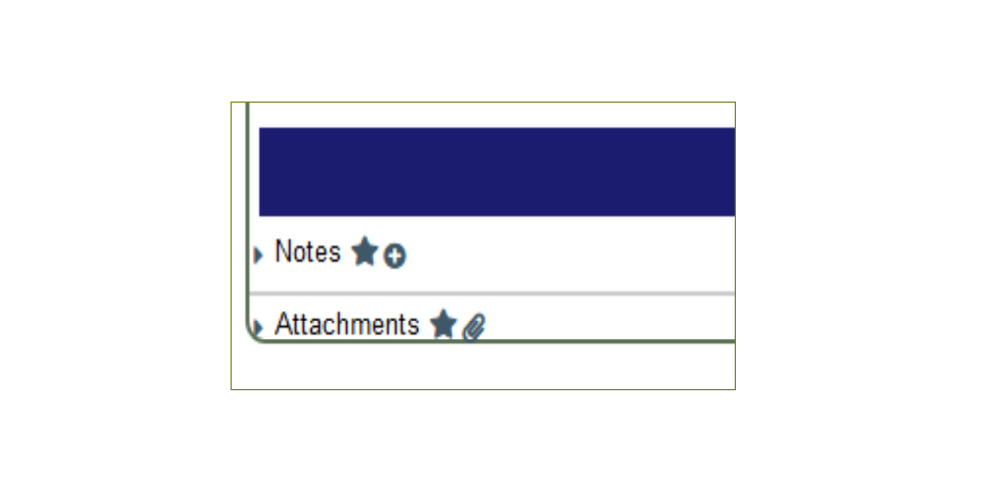
- To add a note, click on the icon next to Notes. A box will pop up where you can record any pertinent information.
- If you wish to attach a file, click on the icon next to Attachments. You will be able to browse your folders and attach.
 Certify? column
If the amounts in the Certified Effort Column are accurate, click the boxes. (Effort must equal 100%)
Click the Save button and then the Certify button.
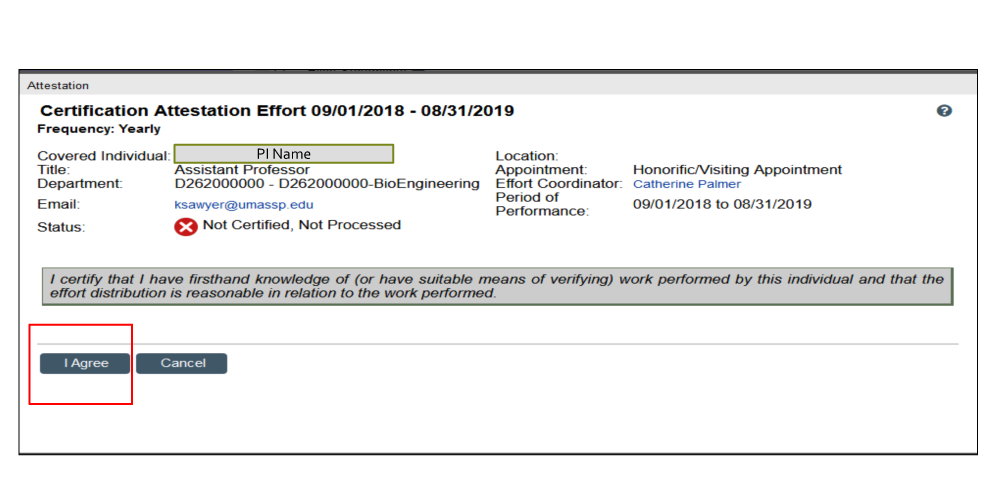
 After you hit the Certify button, you must wait for this window to pop up and then hit the I Agree button.
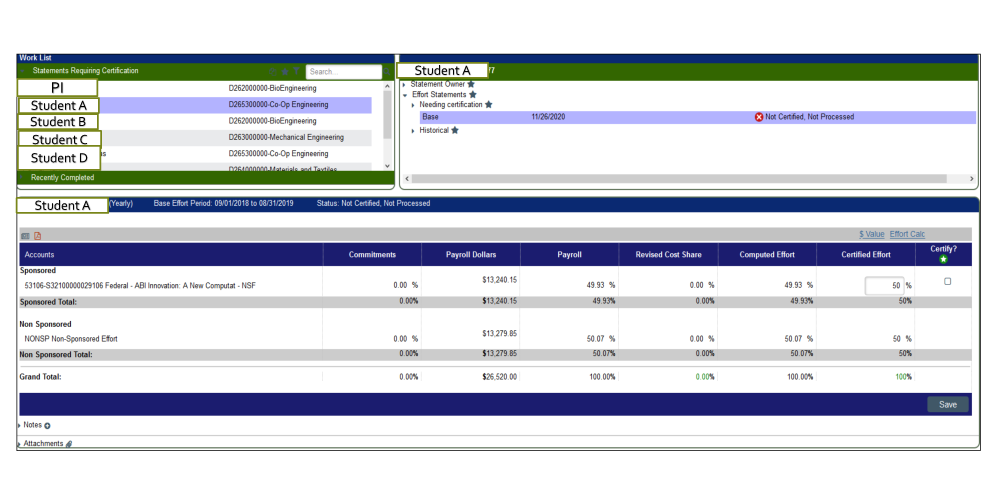
 How do I certify my employees' effort?
After you certify, your screen will default to the next name on your worklist.
You only need to check the Sponsored Effort Certify box. Then follow the same procedure as detailed for PI certification.
 Key points
- Effort must equal 100%.
- Any manual changes to certified effort should have an explanation recorded in the Notes section.
- If you have any questions or issues, please contact Catherine Palmer in the Office of Research Administration at cpalmer1@umassd.edu