Multifactor Authentication
UMass Dartmouth uses the Microsoft Authenticator mobile app to provide Multifactor Authentication (MFA) services. MFA requires two or more methods to verify your identity when you access a secure system. In addition to needing the correct password, a second factor is required for you to authorize your login.
This protects the University against data breaches by ensuring only legitimate users and appropriate devices have access to sensitive data and applications.
It also protect students, employees and vendors. Student, employee, and vendor sensitive data lives in the University's enterprise systems. Sensitive data (student FERPA protected data, social security numbers, bank accounts, and tax forms) is more secure.
Microsoft Authenticator is used with any system that requires the UMassD Logon for authentication, for example:
- The MyUMassD Portal
- Office365 / Outlook
- Canvas
- Concur Travel & Expenses
- Corsair Jobs
- COIN
- HRDirect
- Peoplesoft Finance and Summit
- Others
To use MFA, you are encouraged to download the Microsoft Authenticator app onto your smartphone or tablet and link it to your UMassD Logon account. For help setting up MSA, view Microsoft Authenticator setup instructions below.
To get started with Microsoft Authenticator, follow the steps below.
- Log into your Microsoft account using your full UMass Dartmouth email and password.
- In the “More information required” window, click Next to launch the enrollment wizard.
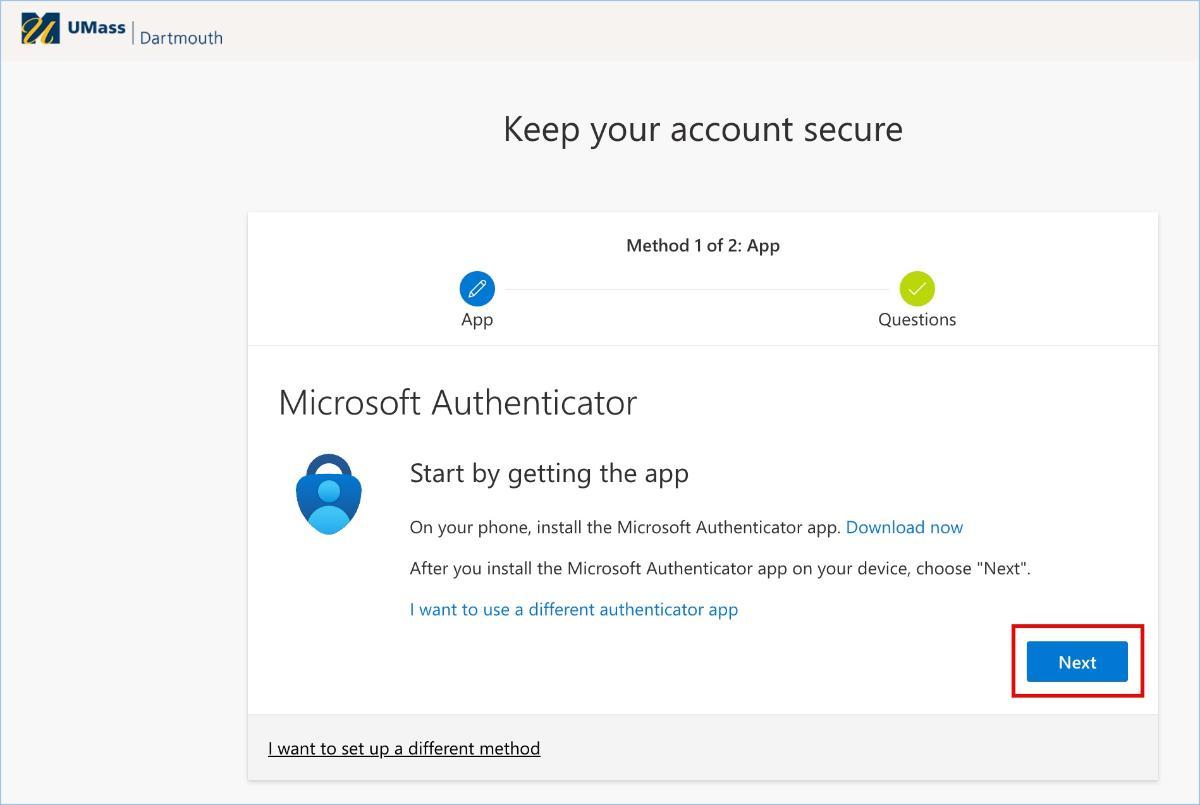
- Follow the on-screen prompts to download and install the Microsoft Authenticator app on your phone. Already have Microsoft Authenticator installed on your phone? Skip to Step 6.
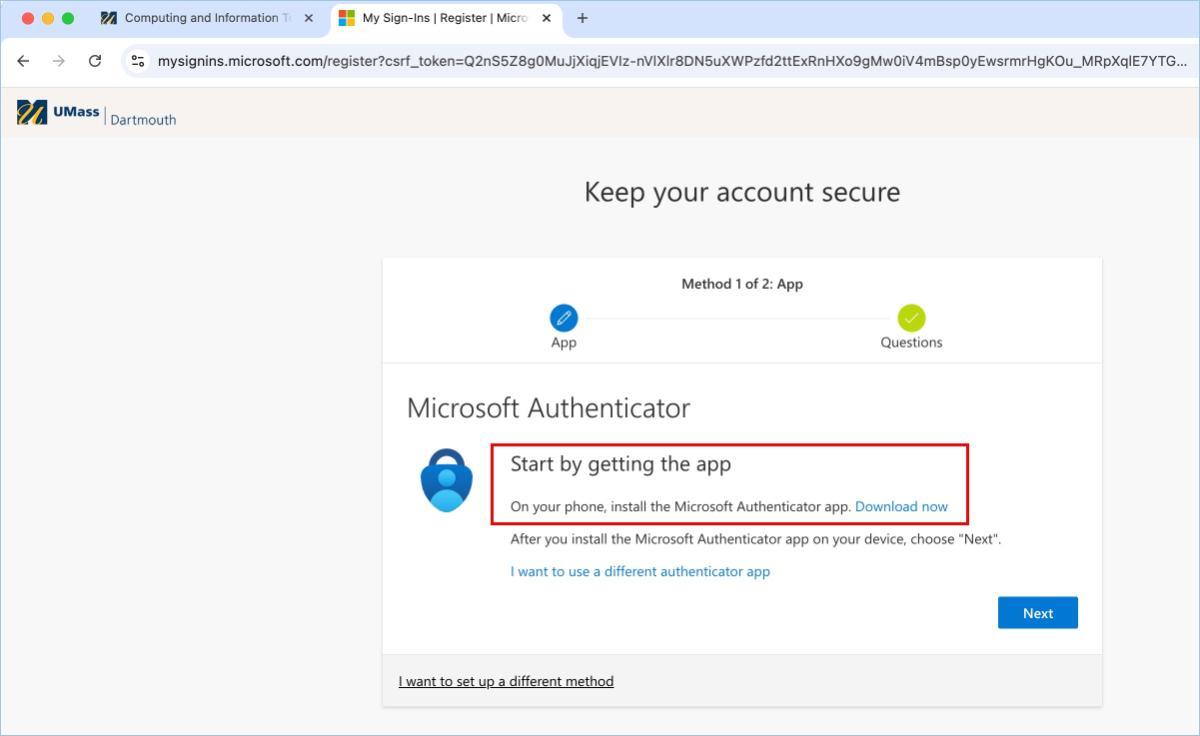
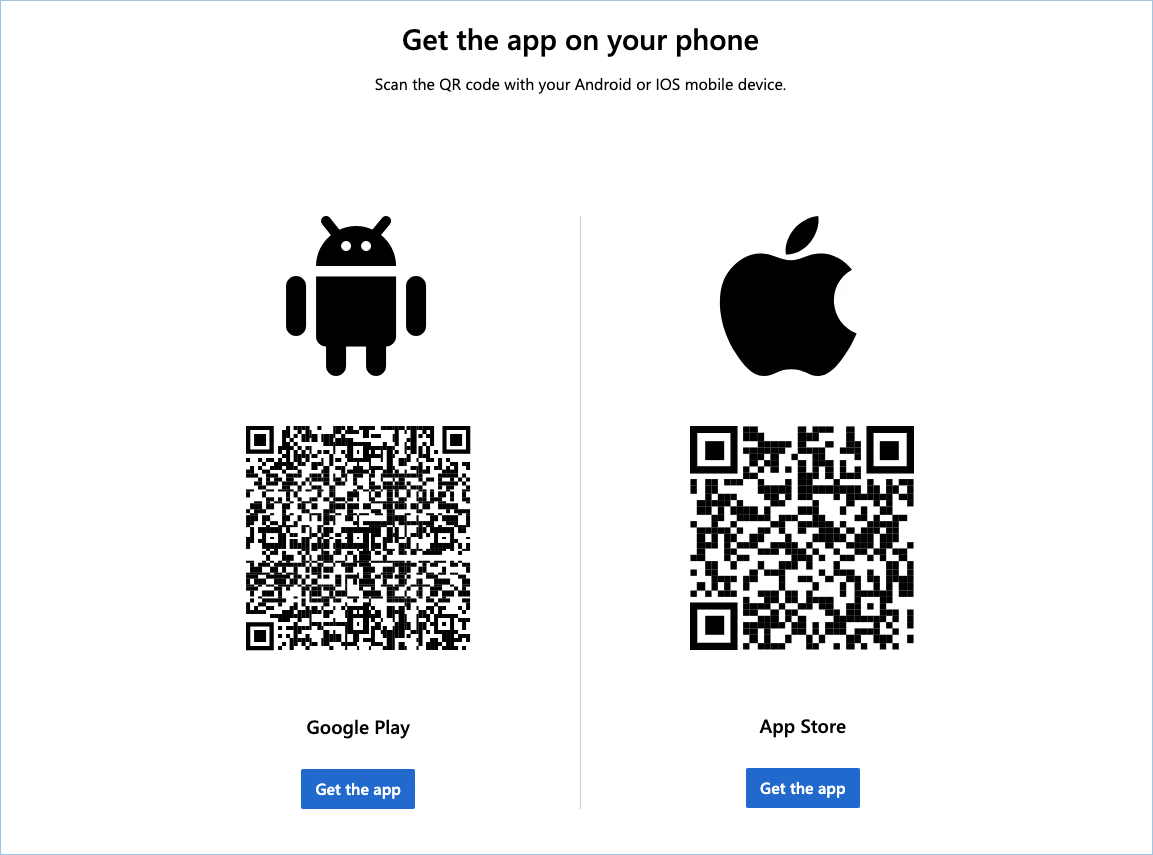
- Click Download now to go to the download page. Scan the QR code to download the MS Authenticator app for your mobile device (Android or Apple only). If you cannot scan the QR code, click the "Get the app" button beneath it that matches your device.
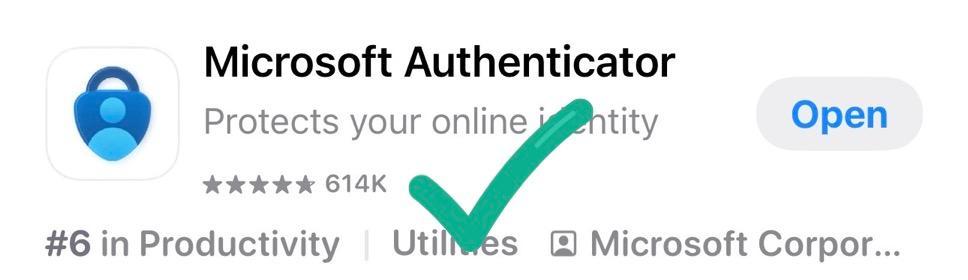
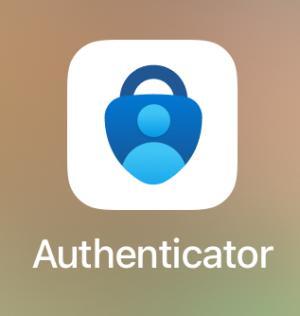
- Search the App Store or Google Play Store: Alternatively, you can search for "Microsoft Authenticator" in the App Store or Google Play Store. Be sure to download the correct app (compare the app icon):
- Click Download now to go to the download page. Scan the QR code to download the MS Authenticator app for your mobile device (Android or Apple only). If you cannot scan the QR code, click the "Get the app" button beneath it that matches your device.
- On your mobile device, open the Microsoft Authenticator app. If opening the Authenticator app for the first time, you will see a few notices:
-
- If prompted, Accept Microsoft's privacy statement.
- Turn on or off app usage data and select Continue.
-
- Return to the web browser and click Next to continue the MFA setup.
- Follow the on-screen prompts to continue setting up your UMassD account in the MS Authenticator app on your mobile phone.
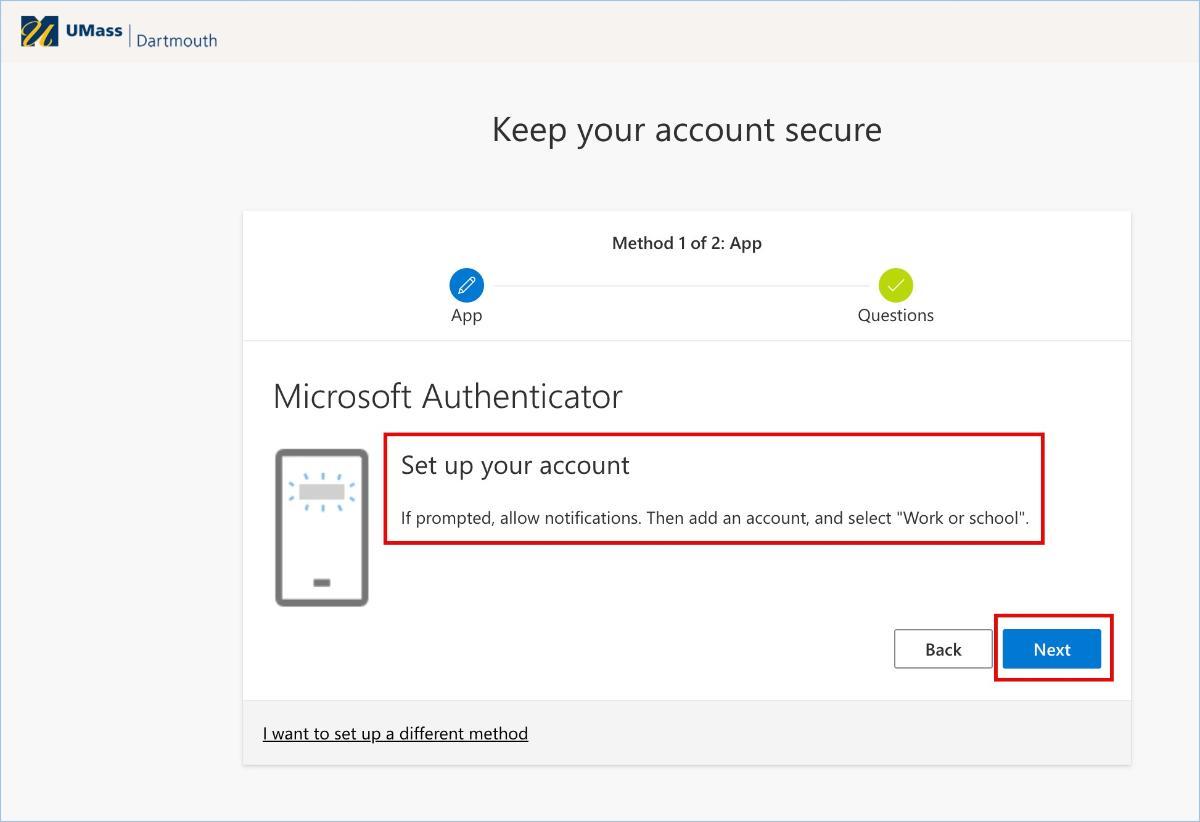
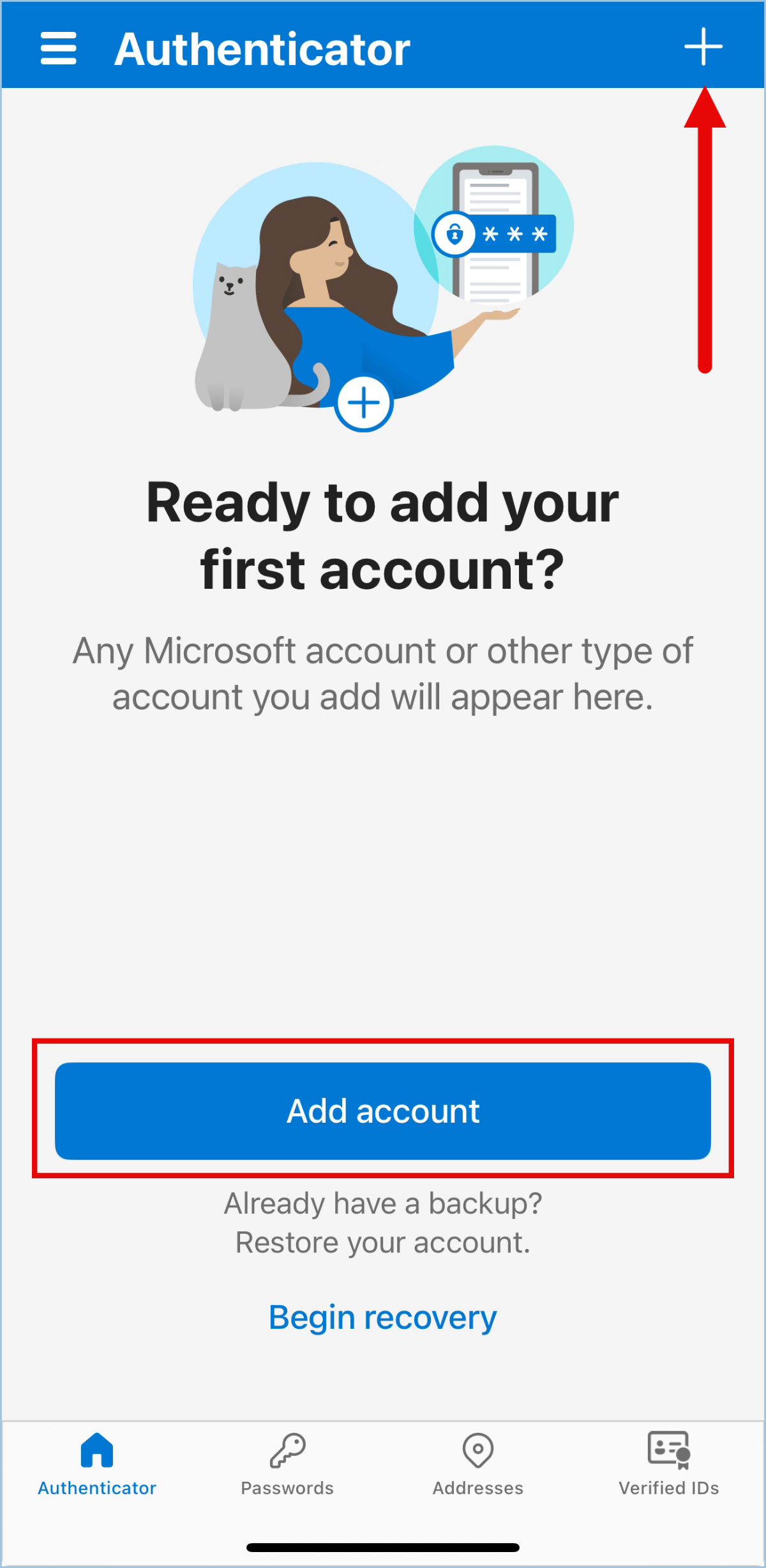
- In the Authenticator app on your mobile device, select Add Account or click the + sign if you already have accounts set up.
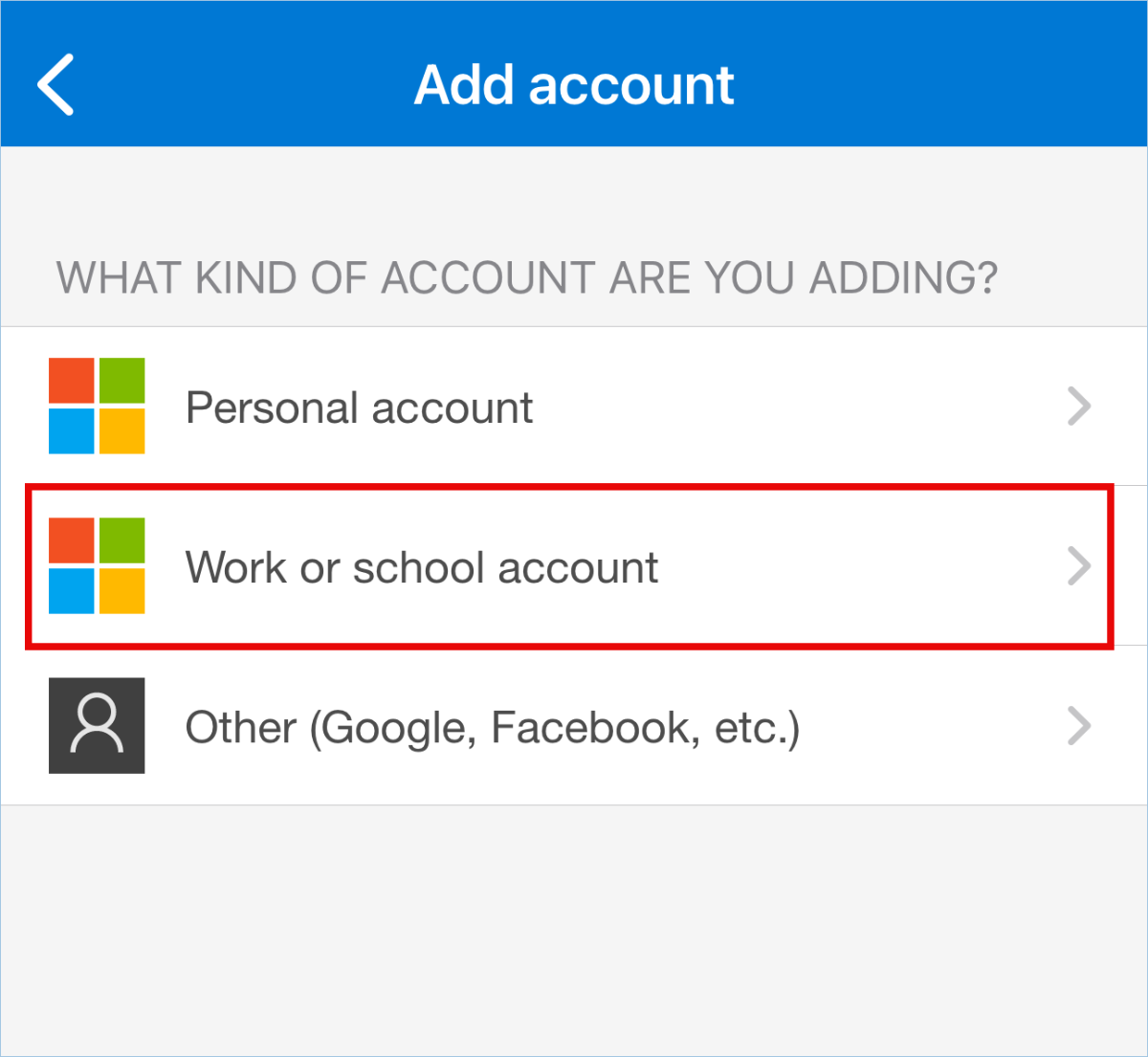
- Select Work or school account
- If using the Authenticator app for the first time, you will see a few notices:
- When prompted, Allow Authenticator access to your camera
- When prompted, Allow Authenticator to send you notifications
- Select Scan QR code to activate the phone's camera
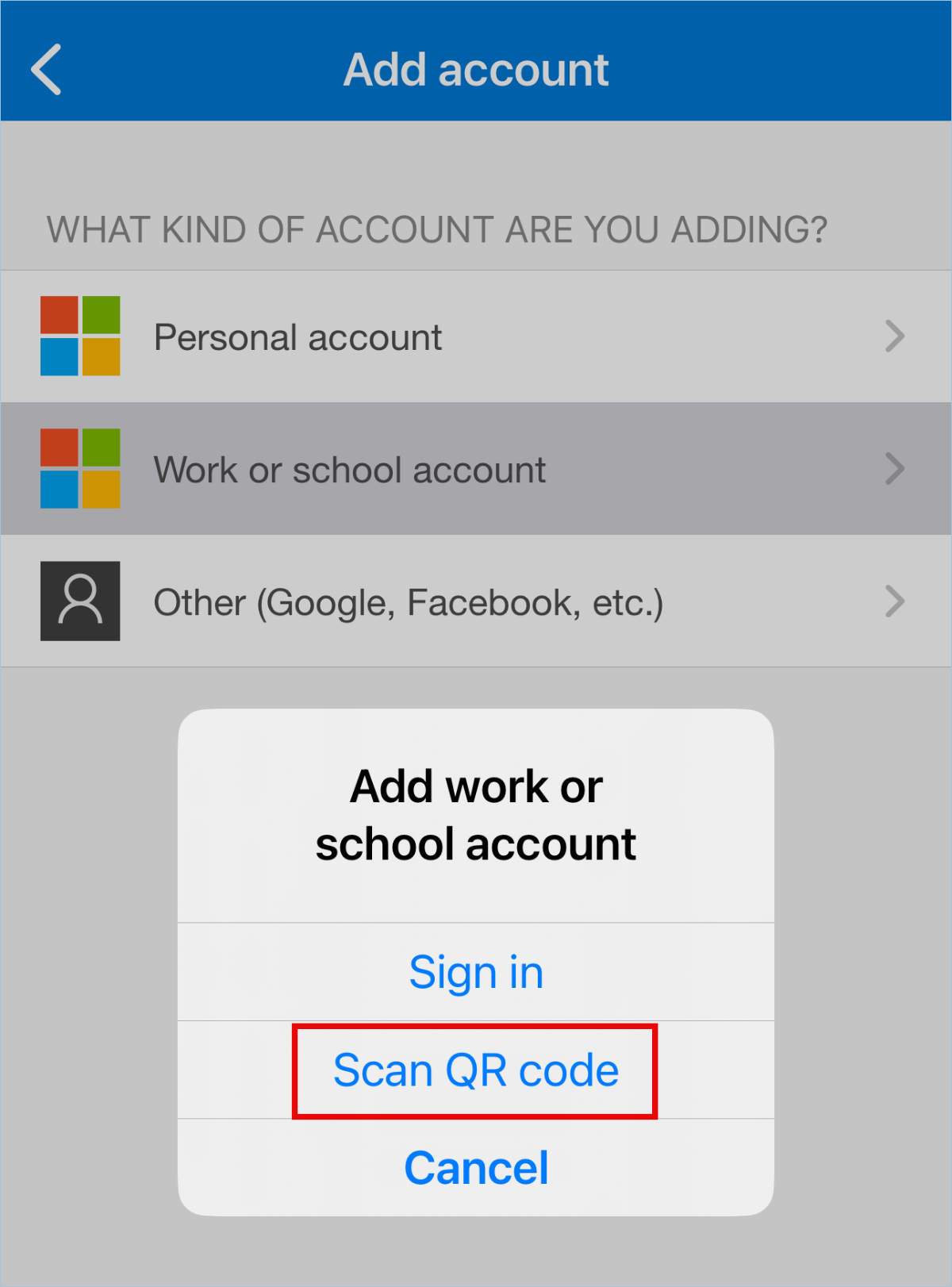
- Select Work or school account
- Return to the web browser to pair the app to your UMassD account:
- Using your phone's camera or a QR Reader app to scan the QR code in the browser with MFA setup
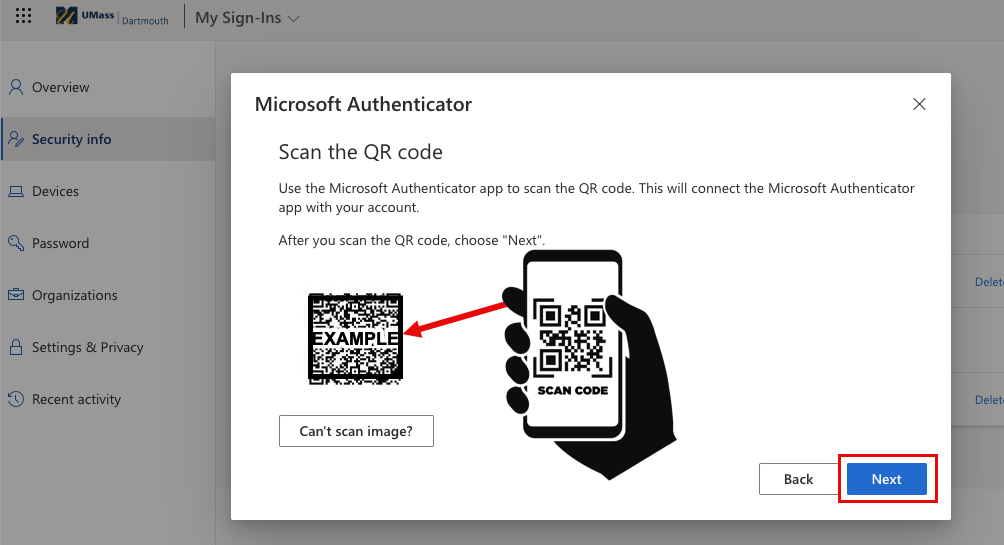
- If using a mobile device, click the link "Pair your account to the app by clicking this link". Your phone will open the Microsoft Authenticator app. Once you see your UMassD account listed, go back to your browser window.
- Click Next after you pair your account.
- Using your phone's camera or a QR Reader app to scan the QR code in the browser with MFA setup
- Verify your UMassD account is connected to the Microsoft Authenticator app. your phone will prompt you for authentication using the Microsoft Authenticator app.
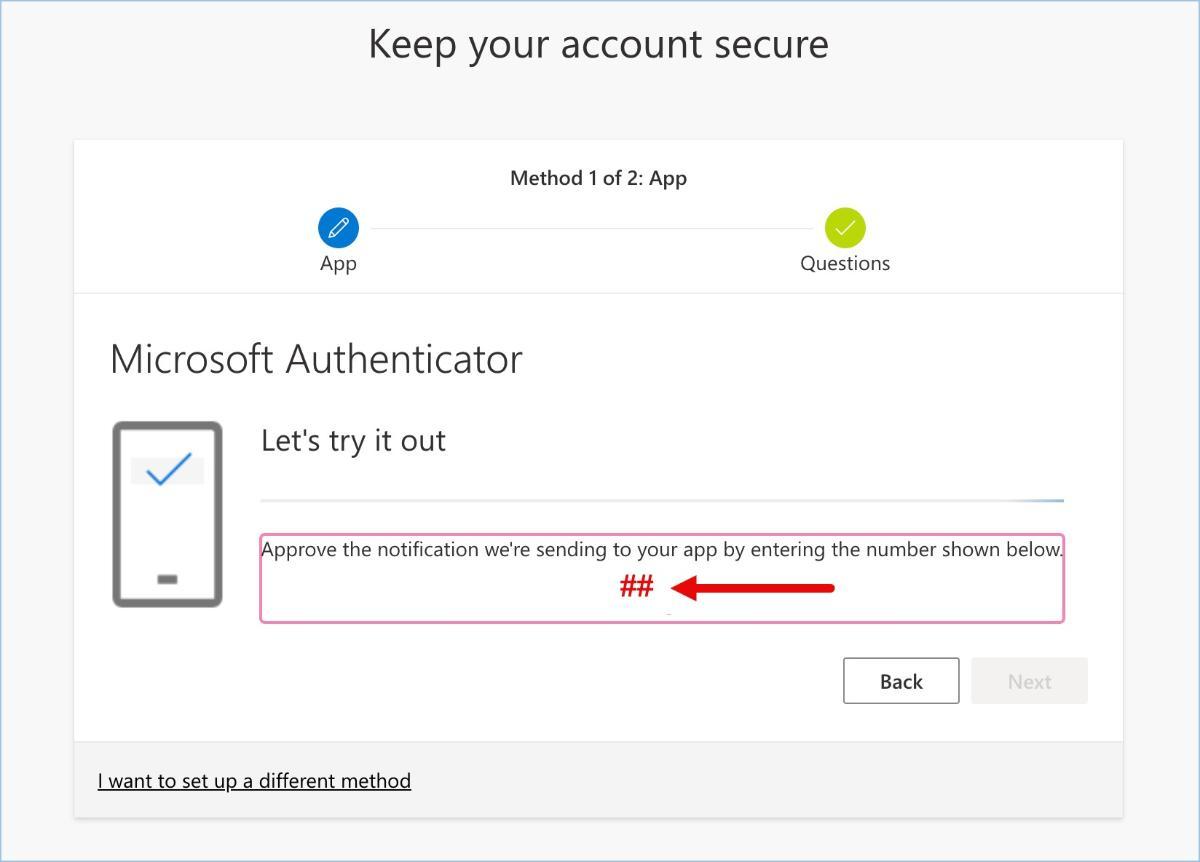
Copy the unique number shown in the Authenticator browser window and enter it into the Authenticator app to confirm the connection.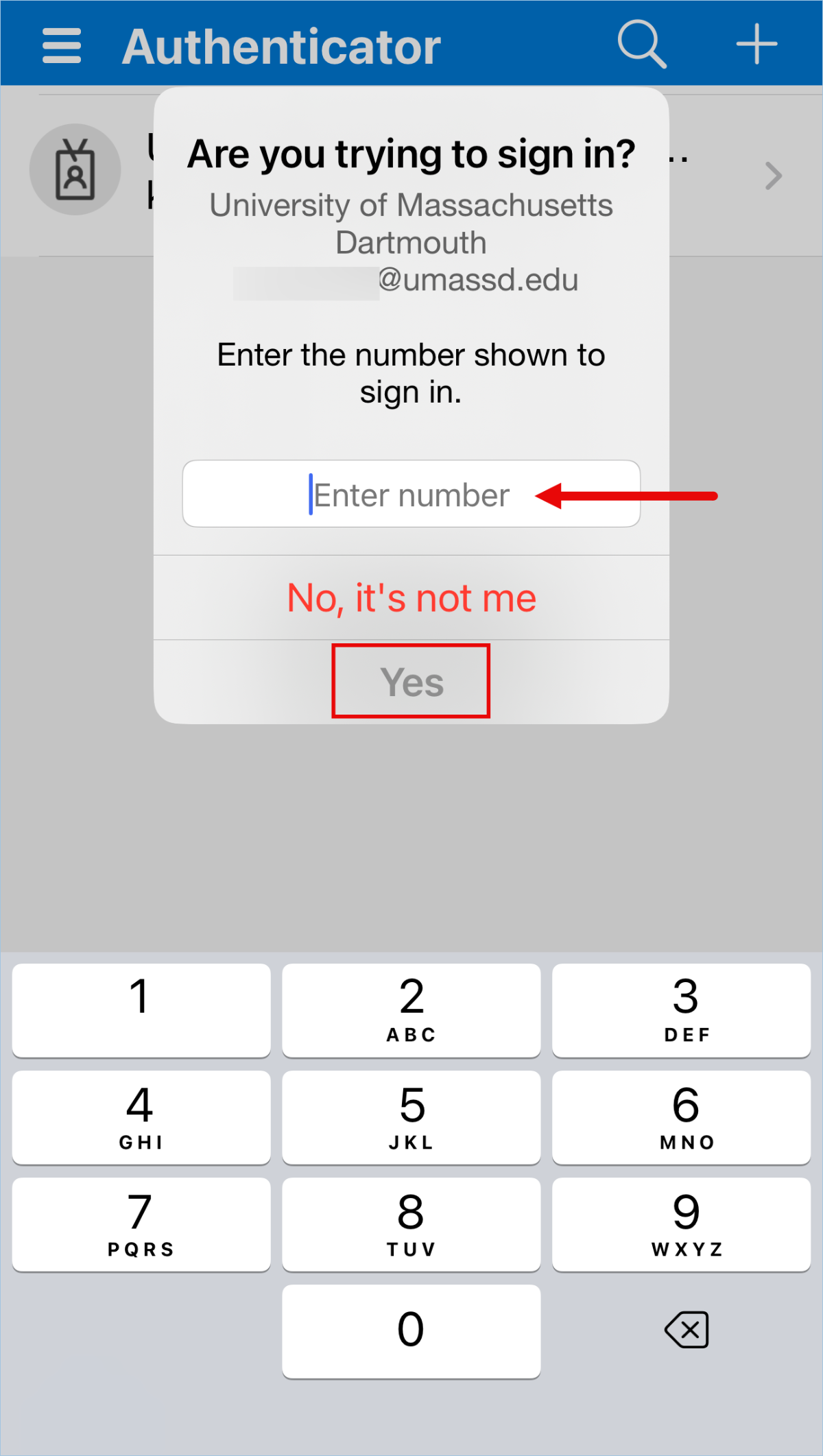
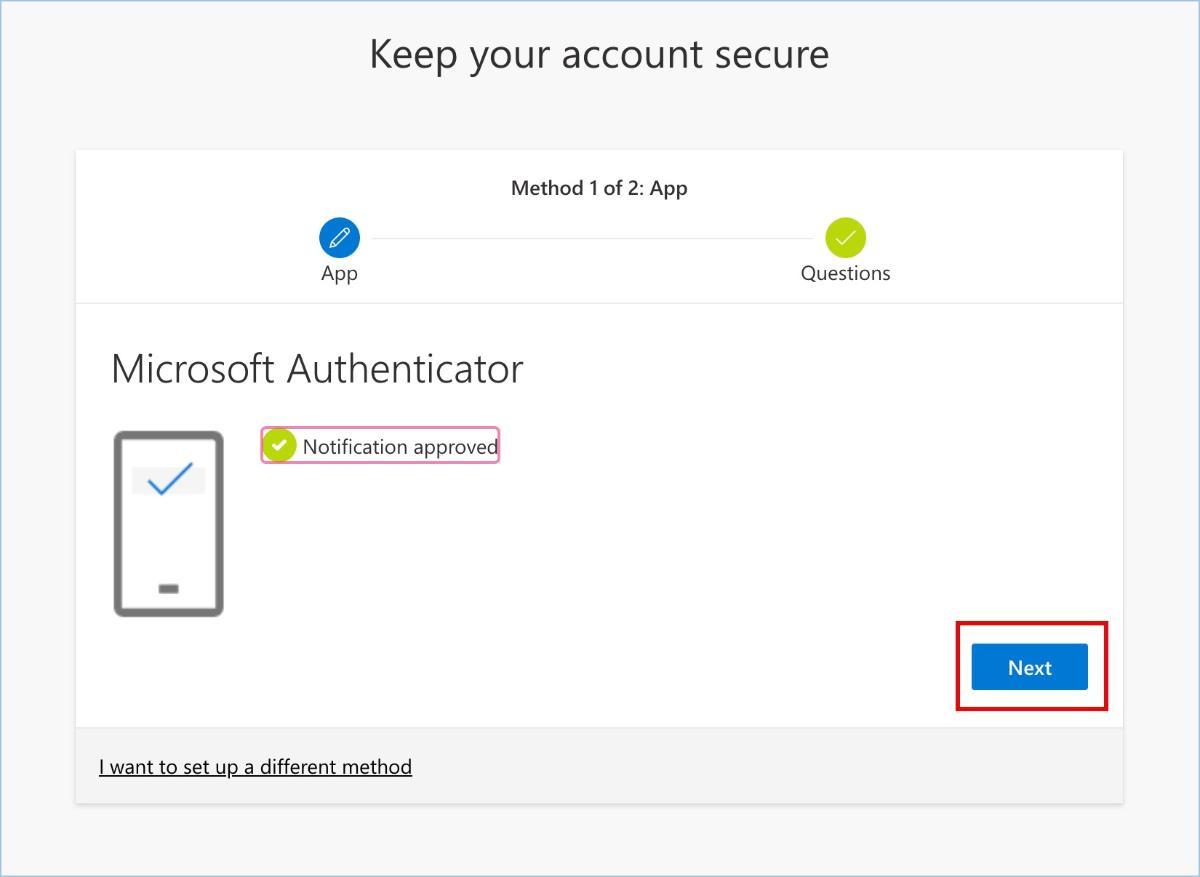
- The Microsoft Authenticator browser window will confirm the account setup with a "Notification approved" message once the Microsoft Authenticator app verifies the connection. Click Next to continue.
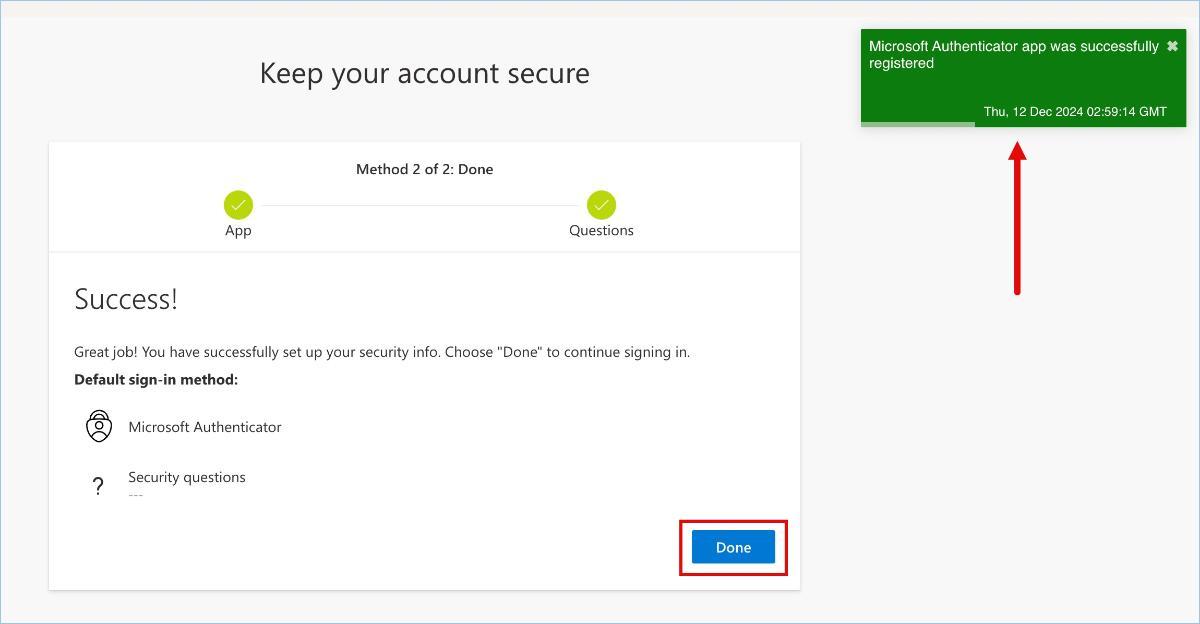
- Once your UMassD account is registered with the Microsoft Authenticator app, you will see a green message confirming the registration. Click Done when finished.