Hoteling with Robin
/filters:quality(90)/prod01/production-cdn-pxl/media/umassdartmouth/cits/images/robin.png)
Robin Powered is the platform used to manage desk reservations (also known as "hoteling") in shared workspaces at UMass Dartmouth. With Robin, you can easily reserve a desk in advance or on the go, whether you're at your computer or using a mobile device. This helps ensure you have a dedicated space when working on campus and supports flexible workspace management.
Robin is available to members of the UMass Dartmouth campus community who share workspaces in the Robin hoteling program. If your office or department would like to participate, please contact CITS.
- Getting started with Robin
- Booking rules
- Reserve a desk via web browser
- Reserve a desk via Outlook add-in
- Reserve a desk via mobile app
- Configure your user profile
- Additional resources about booking desks with Robin
⚖️ Booking Rules
In order to support equitable access to hoteling spaces, the following rules are in place:
- A single reservation cannot exceed 2 hours.
- You can reserve desks up to 30 days in advance.
- Overlapping reservations are not permitted.
- If you have a permanently assigned desk, you can access Robin but not reserve any desk.
You may see a message "Max reservation length is 2 hours", for example, after clicking on a desk in the floor plan:
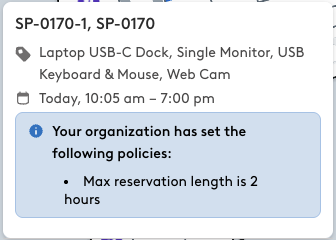
Please make sure to adjust the reservation time length at the top to 2 hours or less:
 The desk then becomes reservable if it is available at the selected date and time.
🖥️ Reserve a Desk via Web Browser
-
Go to the Robin web dashboard: https://dashboard.robinpowered.com/umassdartmouth
-
Select "Continue with Single Sign-On" and log in using your UMassD Logon.
-
Select your location and navigate the floor map to find and reserve an available desk.
🔗 Full Instructions:
How to reserve a desk using Robin on the web
📅 Reserve a Desk via Outlook Add-In
Robin integrates with Microsoft Outlook so you can book desks while scheduling meetings or planning your week.
-
Open your Outlook calendar.
-
Use the Robin add-in from the ribbon to open the desk reservation panel.
-
Select a date, time, and available desk to complete your reservation.
🔗 Full Instructions:
How to reserve a desk via the Outlook add-in
📱 Reserve a Desk via Mobile App
The Robin mobile app lets you reserve desks anytime, anywhere:
-
Download the Robin app:
-
iOS (Apple): Download on the App Store
-
Android: Download on Google Play
-
-
Open the app and sign in with your UMassD Logon.
-
Tap on “Desks” and use the map or list view to find and reserve an available space.
All desks have a NFC/QR code tag. If you have the mobile app installed, you can scan the QR code with the camera or hold a NFC-compatible device near the tag. Learn how to book a desk by scanning a QR code or NFC tag.
🔗 Full Instructions:
How to book a desk on mobile
👤 Configure Your User Profile
Customizing your profile helps Robin recommend desks near colleagues and streamline bookings.
-
Log in to the Robin Dashboard using single sign-on with your UMassD Logon.
-
Click your name (top right) and select My Account.
-
In your Profile, you can:
- Upload a photo
- Set your home office location
- Add your department, title, and team
- Choose notification preferences
- Connect your Outlook calendar
These settings sync across all Robin platforms (web, Outlook, mobile).
🔗 Full Instructions:
How to configure your user profile settings
If you need assistance with logging in or navigating the system, please contact CITS at 508-999-8900 or submit an IT support case via https://ithelp.umassd.edu/.