Eduroam Instructions
Instructions to join eduroam by type of device
Before you begin, ensure you are in an area with a strong wireless signal. Select your device below for instructions on connecting it to Eduroam.
Follow the steps below to configure a modern Android phone or tablet to connect to the Eduroam wireless network. There are many different versions of Android. Your device might have a slightly different set of fields.
- Open the Settings app and select Network & Internet. Ensure wifi is on.
- From the available wireless networks, select eduroam.
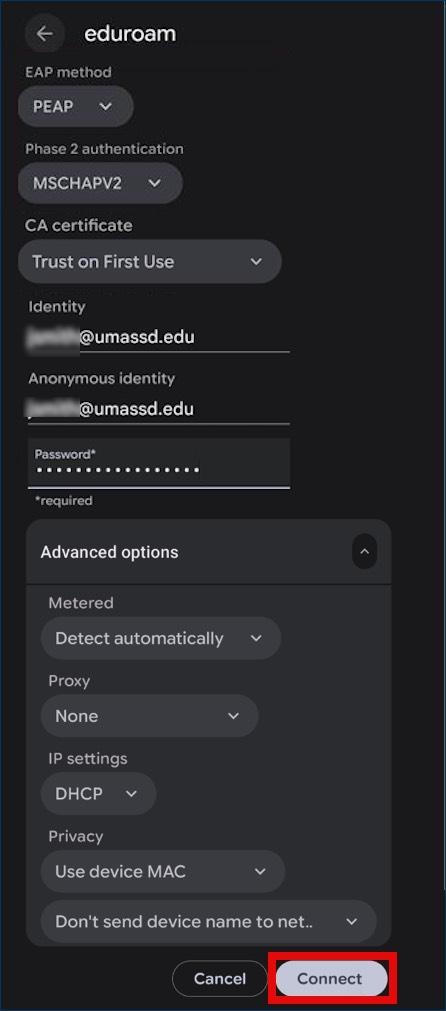
- Enter the following Network details using your full UMass Dartmouth email address and logon password in the identity section:
- EAP method: PEAP
- Phase 2 authentication: MSCHAPV2
- CA certificate: Trust on First Use
- Identity: UMassD email address
- Anonymous identity: UMassD email address
- Password: UMassD logon password
- Select the following "Advanced Options":
- Metered: Detect automatically
- Proxy: None
- IP settings: DCHP
- Privacy: Use device MAC
- Don't send device name to network
- Select Connect
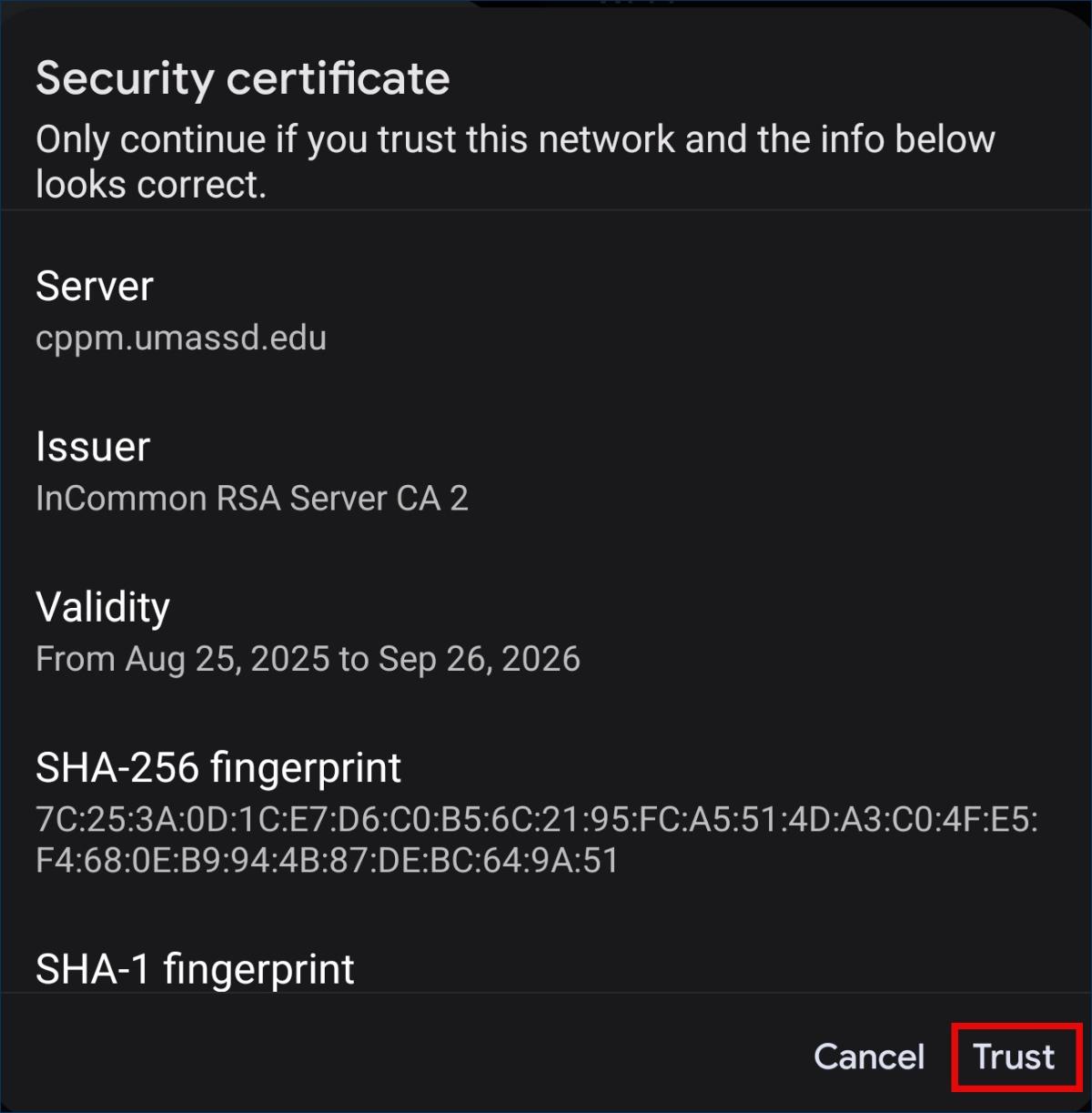
- If prompted, select Trust to accept the security certificate and complete the connection to eduroam wifi.
Follow the steps below to configure a modern iOS phone or tablet to connect to the Eduroam wireless network. Please note: your device might have a slightly different set of fields.
- Open the Settings app and select Wifi. Ensure wifi is on.
- From the available wireless networks, select eduroam.
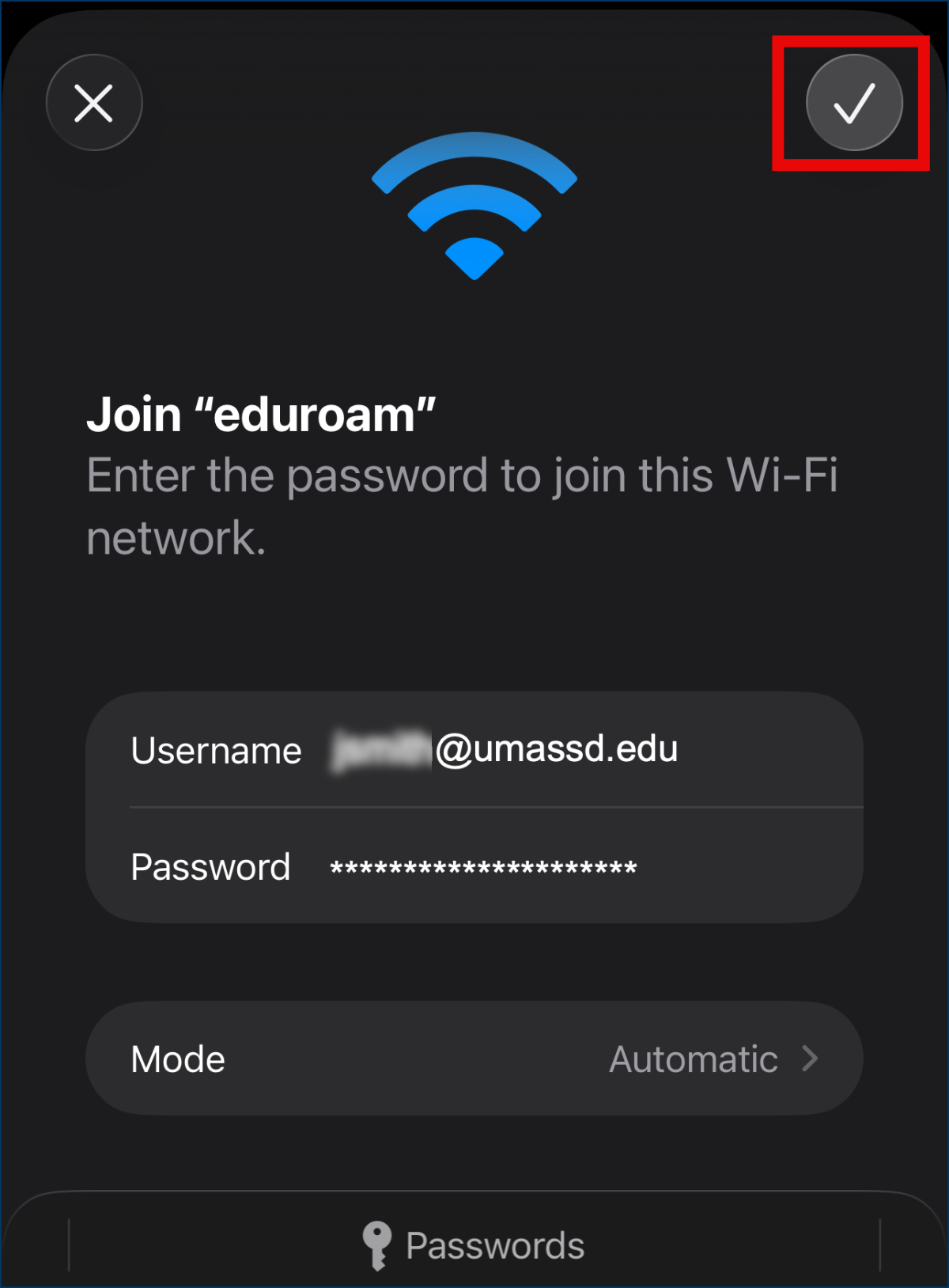
- To join "eduroam", enter the following:
- Username: full UMassD email address
- Password: UMassD logon password
- Select the checkmark or Join to submit your credentials
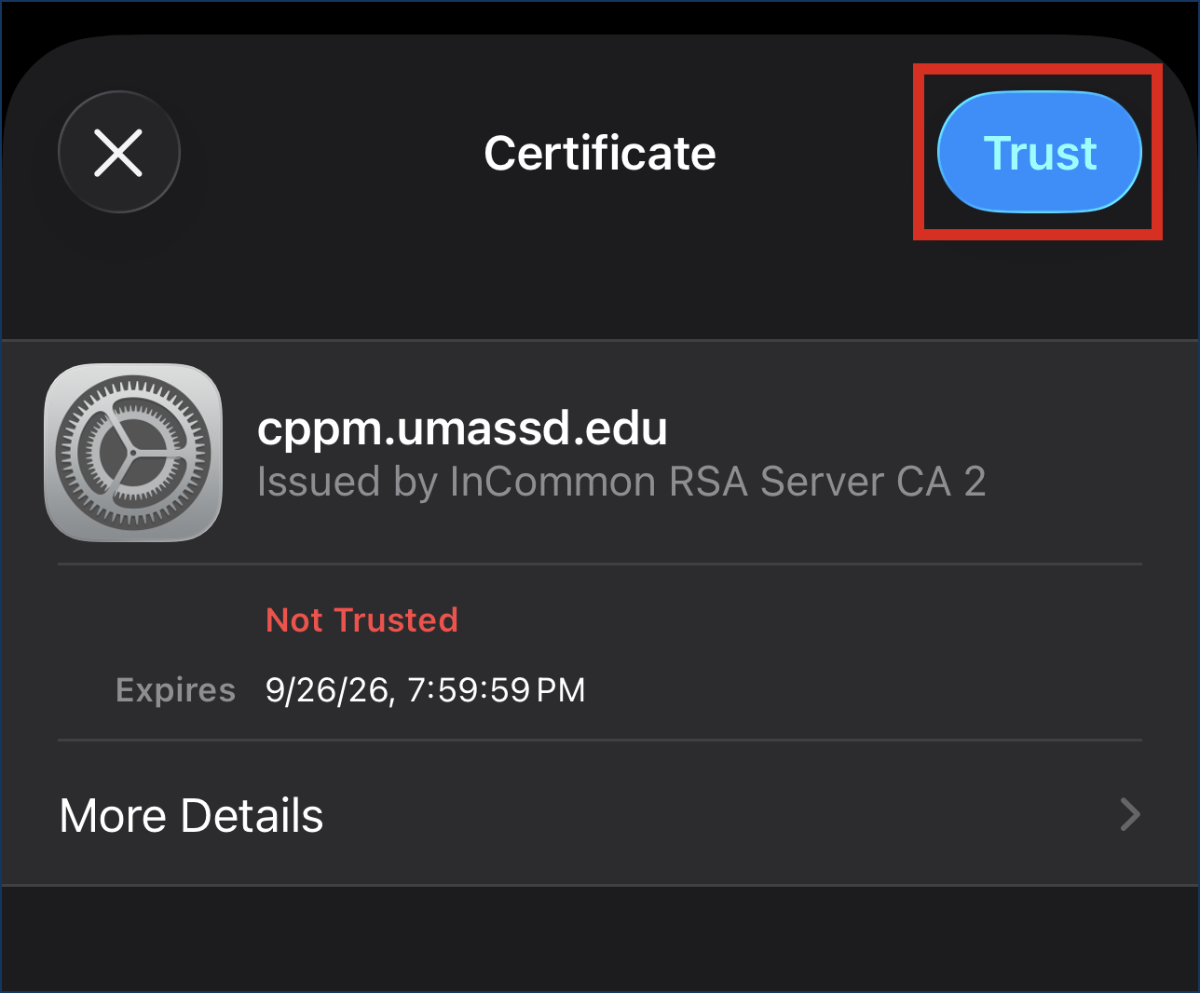
- If prompted, select Trust to accept the security certificate and complete the connection to eduroam wifi.
Follow the steps below to configure a modern macOS laptop to connect to the eduroam wireless network. Please note: your device might have slightly different settings.
- Open System Settings and select Wifi. Ensure wifi is on.
- From the available wireless networks, select eduroam.
- To join "eduroam", enter the following:
- Account name: full UMassD email address
- Password: UMassD logon password
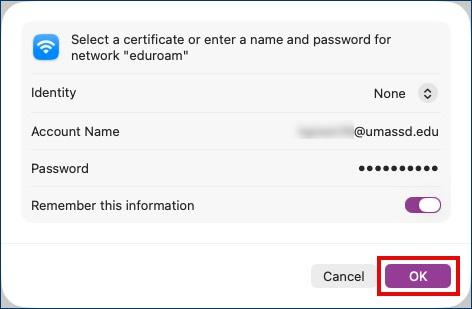
- Click OK.
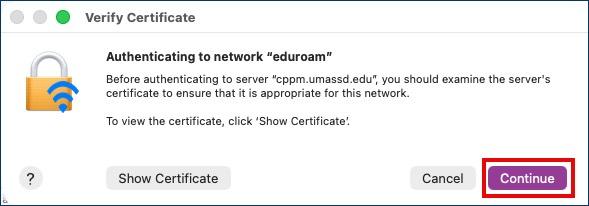
- Select continue to accept the security certificate and complete the connection to eduroam wifi.
Follow the steps below to configure a modern Windows 11 laptop to connect to the eduroam wireless network. Please note: your device might have slightly different settings.
- In Settings, select Network and Internet
- Select Wifi and ensure Wifi is on
- Click Show available networks
- Select eduroam and then Connect
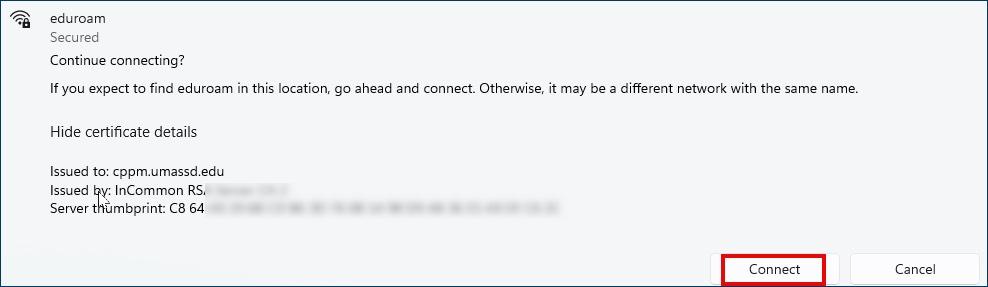
- Select Connect to accept the security certificate
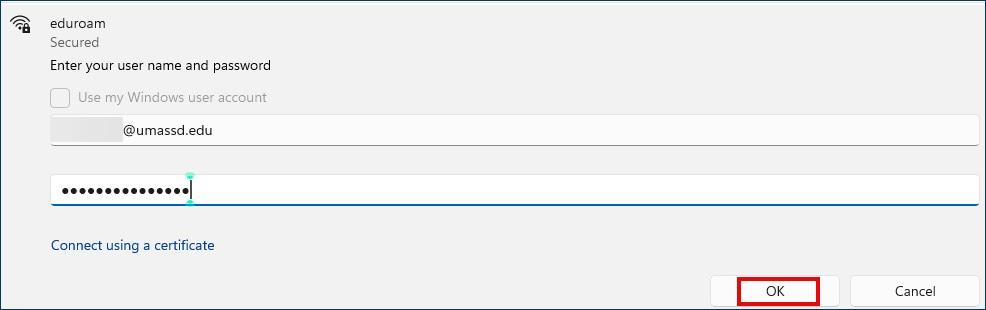
- Enter your full UMassD email address and password and click OK
- Select Connect to complete the connection to eduroam wifi.
Follow the steps below to configure a Chromebook to connect to the eduroam wireless network. Please note: your device might have slightly different settings.
- On the taskbar, click Internet access
- Ensure wifi is on and click eduroam
- Provide the following settings for the connection:
- From the "EAP method" drop down menu, select PEAP
- Enter your full UMassD email address and password
- From the "CA certificate" drop-down menu, select Use system certificates
- In the "Domain" field, type in: edu
- Select Connect to complete the connection to eduroam
Should your personally owned device encounter issues connecting to the UMassD eduroam network, or if you have recently changed your password, you may need to remove the eduroam network from your saved wireless connections. Use the instructions to have your device ‘forget’ or delete the eduroam connection.
Android
- Go to Settings on your device and select Connections
- Select Wifi
- Depending on the Android version, either press and hold eduroam or select the gear icon
- Select Forget
Chromebook
- Select Settings
- On the left, select Network
- Under "Network," select Wi-Fi and then select Known networks.
- Find the eduroam network
- Next to the name of the network, select More and select Forget
iOS Devices
- Go to Settings and select Wifi
- Next to eduroam, tap the (i) and select Forget this network
- Select Forget to confirm
macOS
- In System Settings, select Wifi
- Next to eduroam, click the three dots to open the menu
- Click Forget this network
- Click Remove to confirm
Windows 11
- In Settings, select Network & Internet
- Select Wifi
- Select Manage known networks
- Select Forget next to eduroam