Eduroam Instructions
Eduroam is a global academic wireless network. UMass Dartmouth students, faculty, and staff can use their UMassD email address and password to access the eduroam network on campus and when visiting other academic institutions. Learn more about eduroam.
Before you begin, ensure you are in an area with a strong wireless signal.
Instructions to join eduroam by type of device
Select your device below for instructions on connecting it to Eduroam.
Follow the steps below to configure a modern Android phone or tablet to connect to the Eduroam wireless network. There are many different versions of Android. Your device might have a slightly different set of fields.
- Open the Settings app and select Network & Internet. Ensure wifi is on.
- From the available wireless networks, select eduroam.
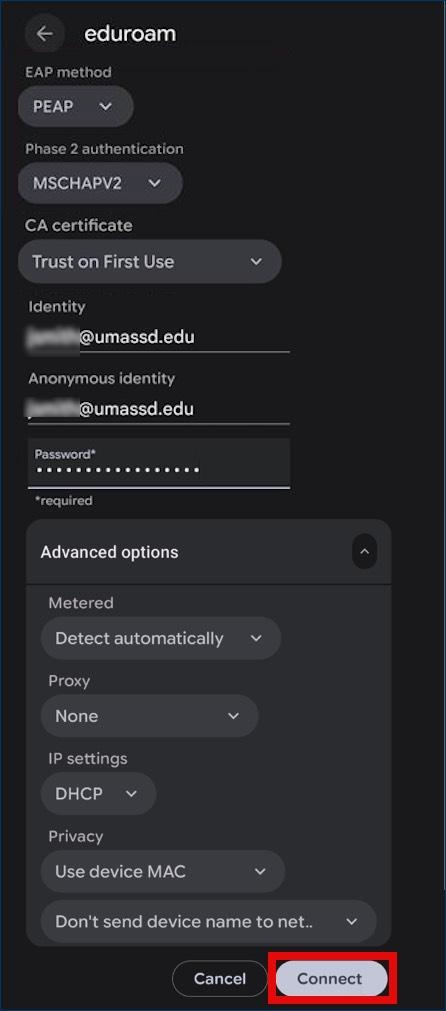
- Enter the following Network details using your full UMass Dartmouth email address and logon password in the identity section:
- EAP method: PEAP
- Phase 2 authentication: MSCHAPV2
- CA certificate: Trust on First Use
- Identity: UMassD email address
- Anonymous identity: UMassD email address
- Password: UMassD logon password
- Select the following "Advanced Options":
- Metered: Detect automatically
- Proxy: None
- IP settings: DCHP
- Privacy: Use device MAC
- Don't send device name to network
- Select Connect
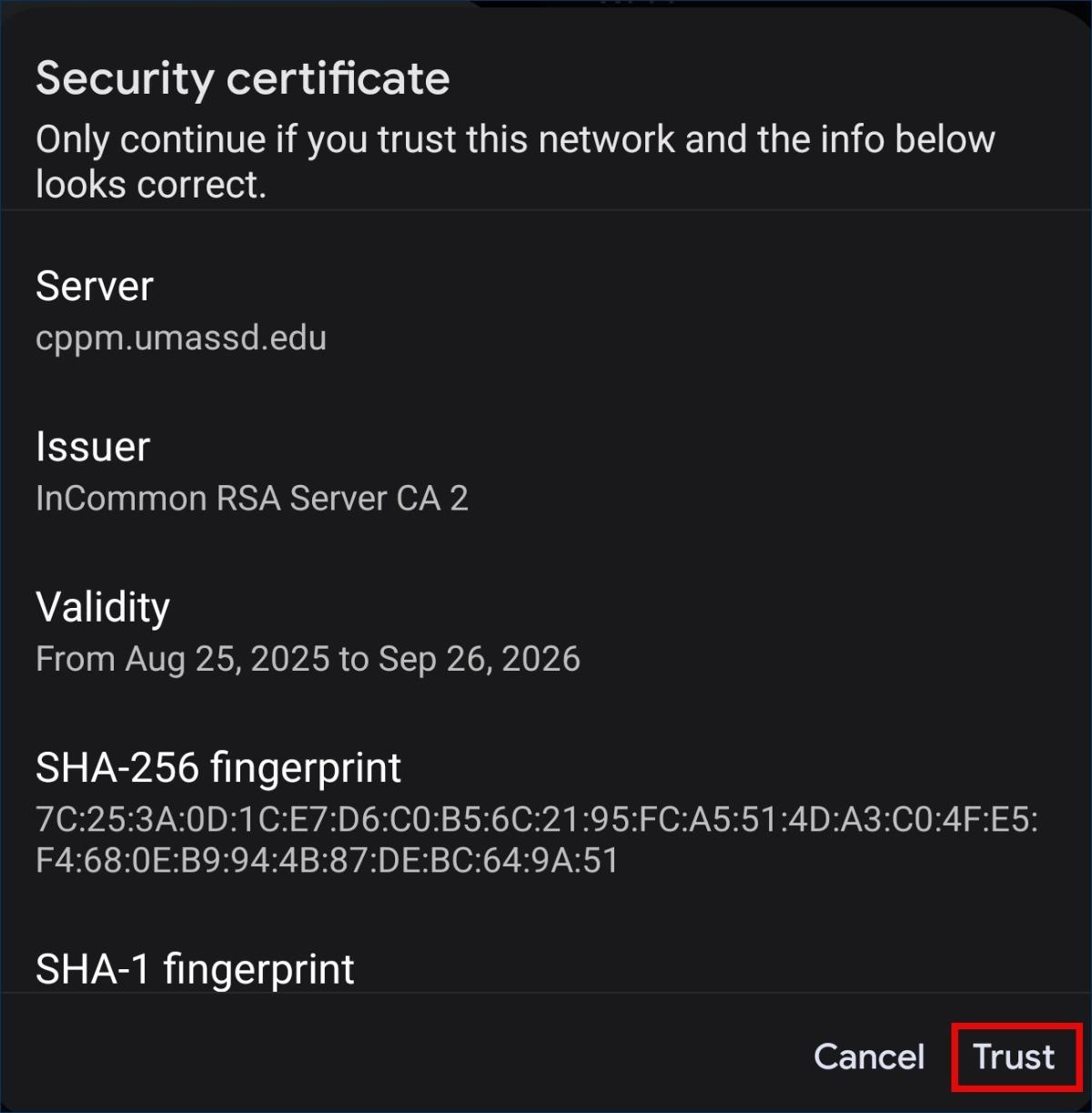
- If prompted, select Trust to accept the security certificate and complete the connection to eduroam wifi.
Follow the steps below to configure a modern iOS phone or tablet to connect to the Eduroam wireless network. Please note: your device might have a slightly different set of fields.
- Open the Settings app and select Wifi. Ensure wifi is on.
- From the available wireless networks, select eduroam.
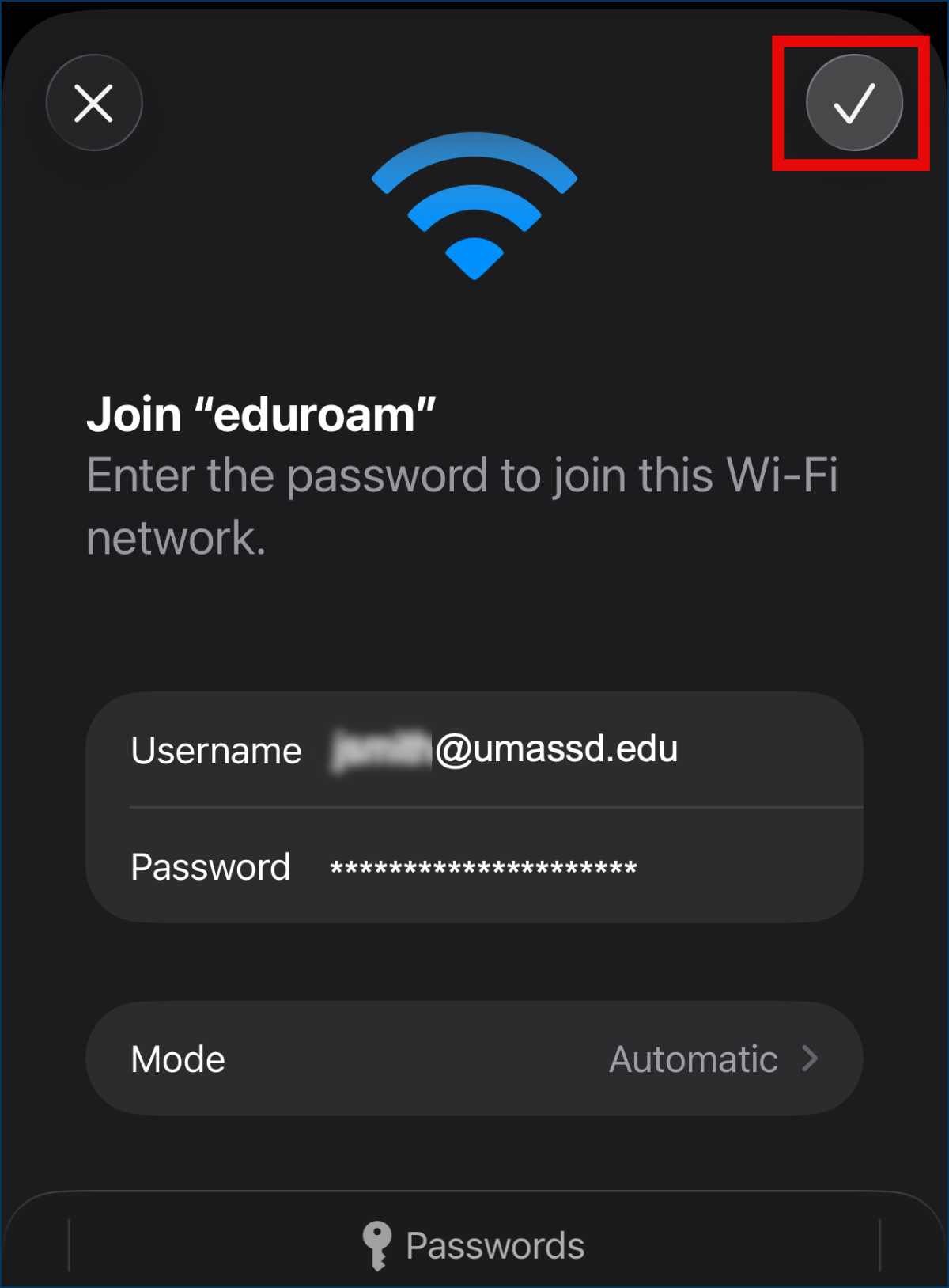
- To join "eduroam", enter the following:
- Username: full UMassD email address
- Password: UMassD logon password
- Select the checkmark or Join to submit your credentials
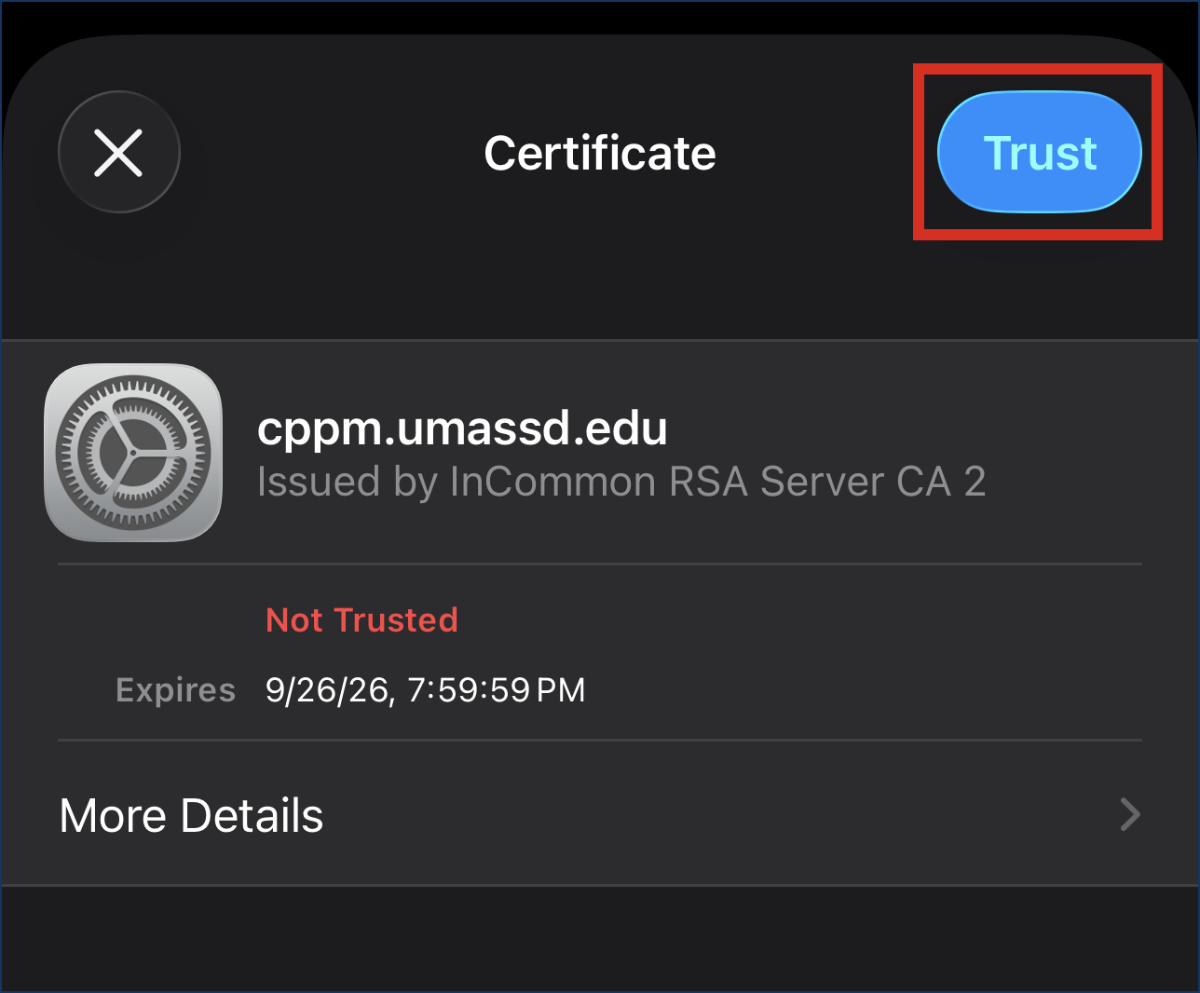
- If prompted, select Trust to accept the security certificate and complete the connection to eduroam wifi.
Follow the steps below to configure a modern macOS laptop to connect to the eduroam wireless network. Please note: your device might have slightly different settings.
- Open System Settings and select Wifi. Ensure wifi is on.
- From the available wireless networks, select eduroam.
- To join "eduroam", enter the following:
- Account name: full UMassD email address
- Password: UMassD logon password
- Click OK.
- Select continue to accept the security certificate and complete the connection to eduroam wifi.